
Auto Notifications
Overview
Auto notifications allow you to automatically message your reseller contacts whenever you update product content in Magpie. This ensures your distribution partners always have the latest information without requiring manual outreach.
Setup Instructions
Step 1: Access Reseller Management
Navigate to the Manage Resellers section and select the reseller partner you want to configure notifications for.
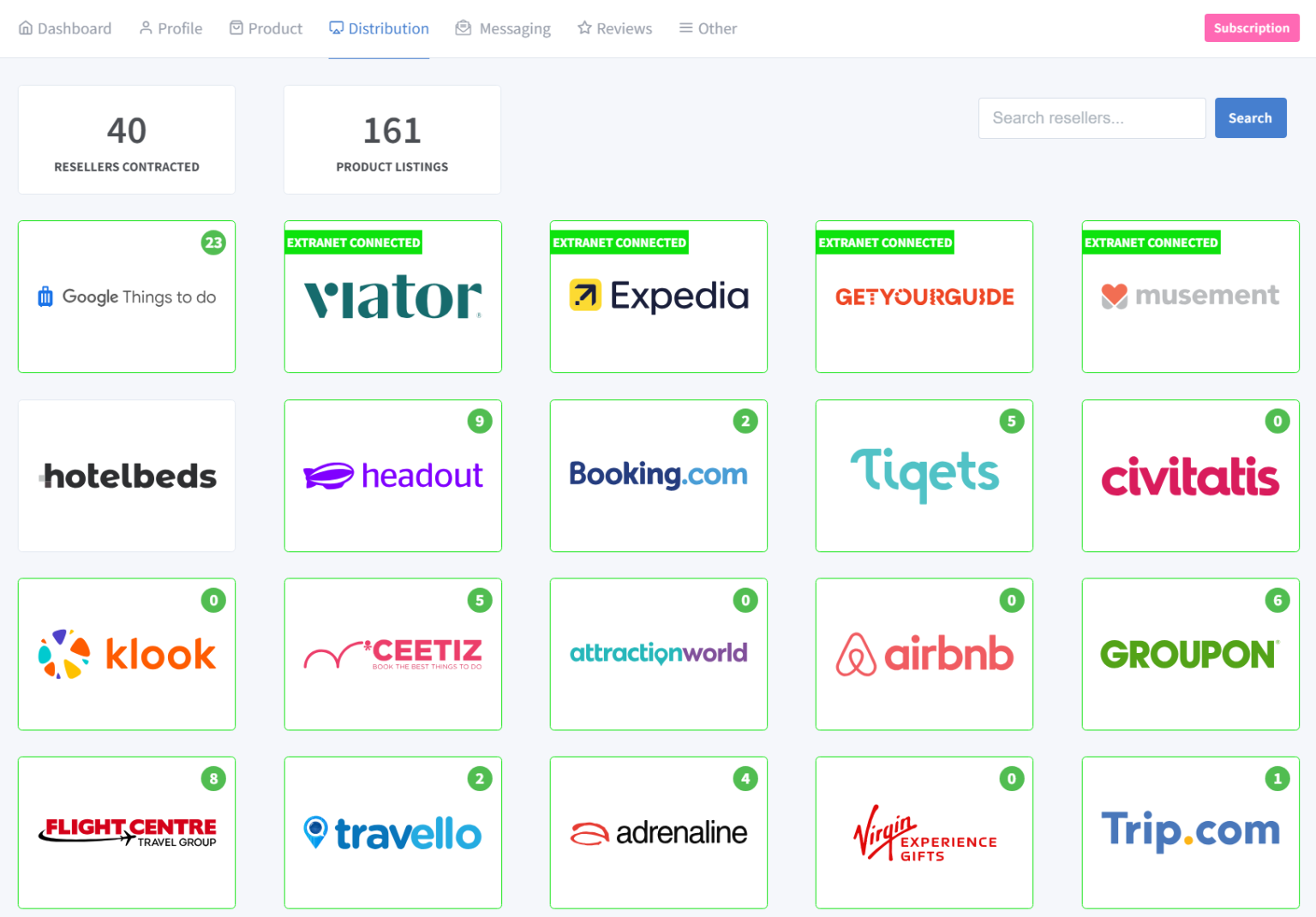
Step 2: Go to Contacts
Once inside the reseller hub, click on the Contacts tab. If no contacts exist yet, you will need to create one first before setting up notifications.
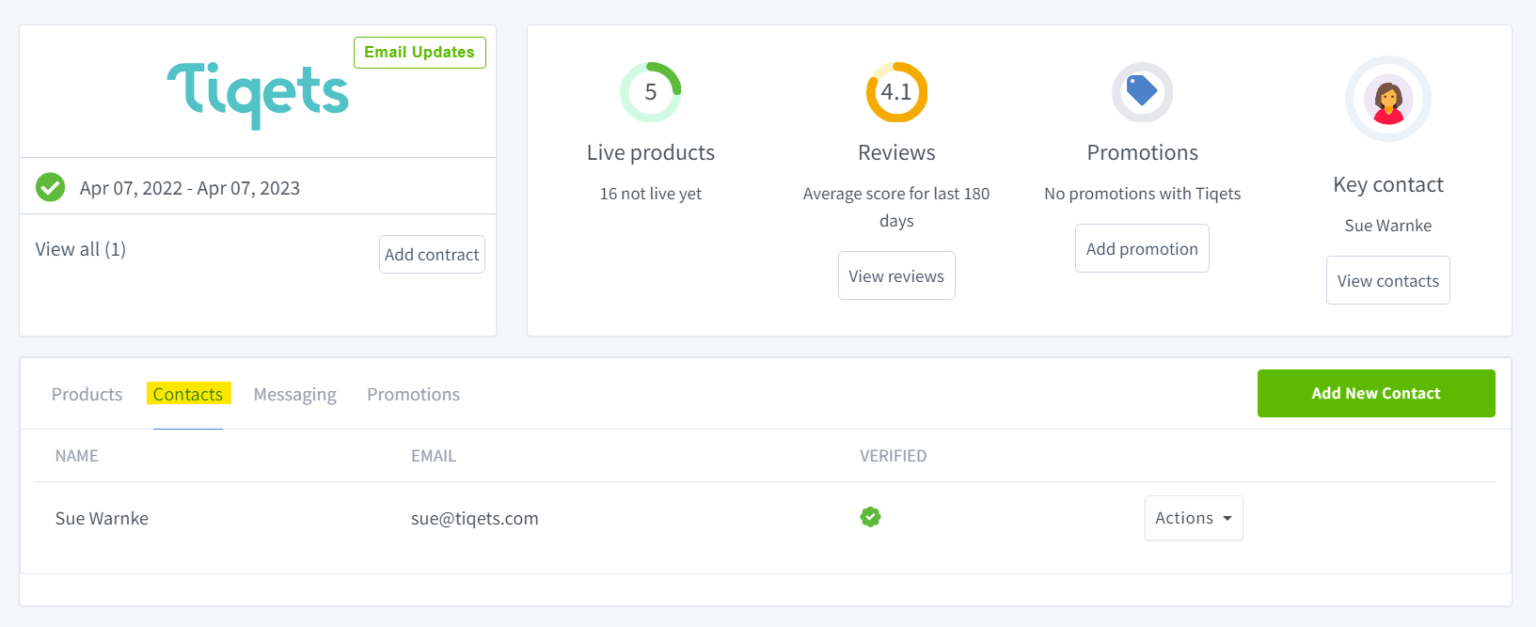
Step 3: Configure Notifications
- Click the Actions dropdown menu next to the desired contact
- Select Add Notifications
- In the modal window that appears, choose which products this contact should receive notifications about when changes are made
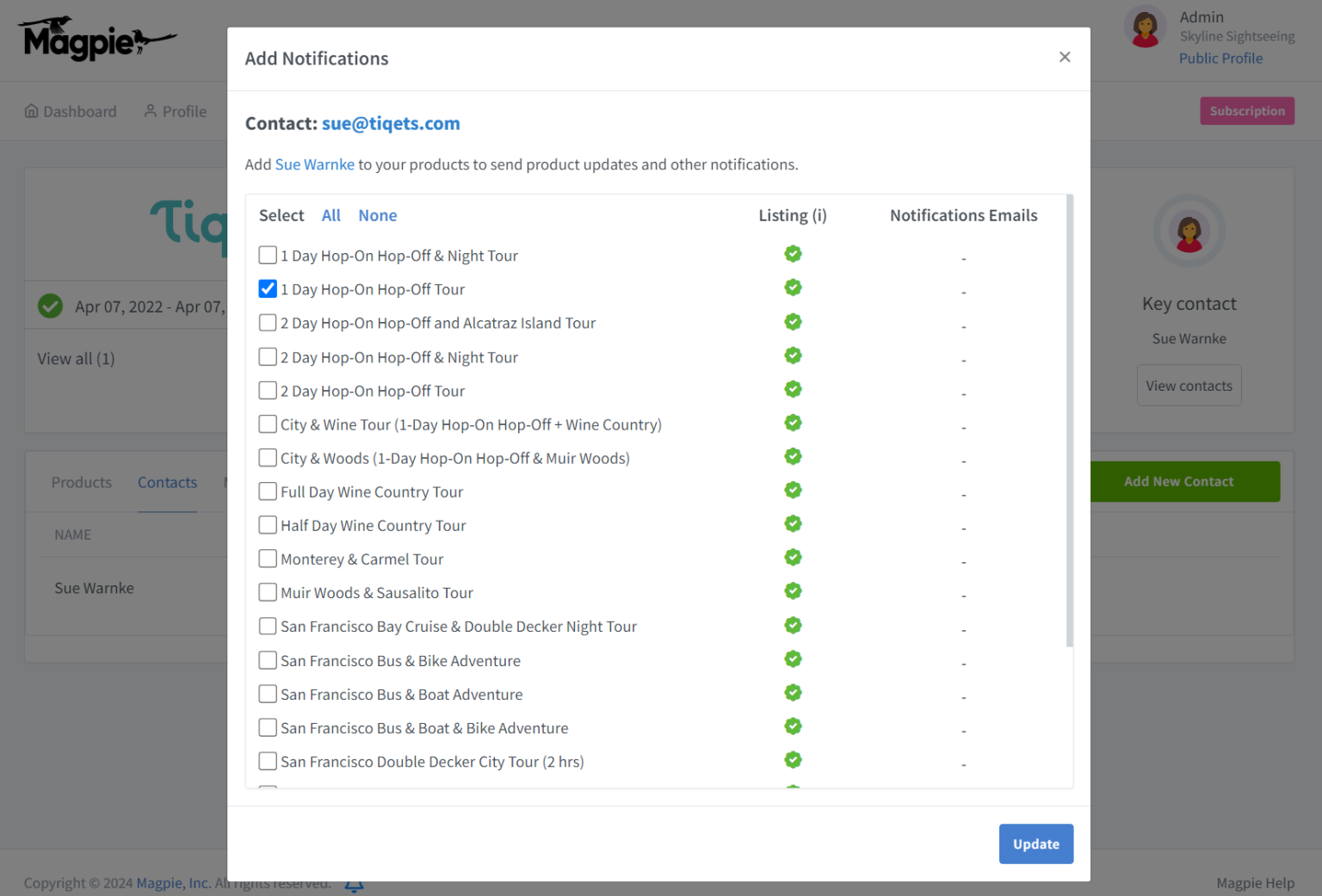
How It Works
Once configured, any time you update the content for a selected product in Magpie, the system will automatically send a notification to the designated contacts. This keeps your reseller partners informed of changes to descriptions, pricing, images, and other product details.
Best Practices
- Set up notifications for your primary contacts at each reseller partner
- Choose specific products rather than all products to avoid notification fatigue
- Ensure contact email addresses are verified before enabling notifications