
Connect GetYourGuide
Overview
Connecting GetYourGuide to Magpie allows you to import your product content and reviews into the Magpie platform. The integration is set up by adding Magpie as a contact within your GetYourGuide account.
Setup Steps
Step 1: Navigate to Account Settings
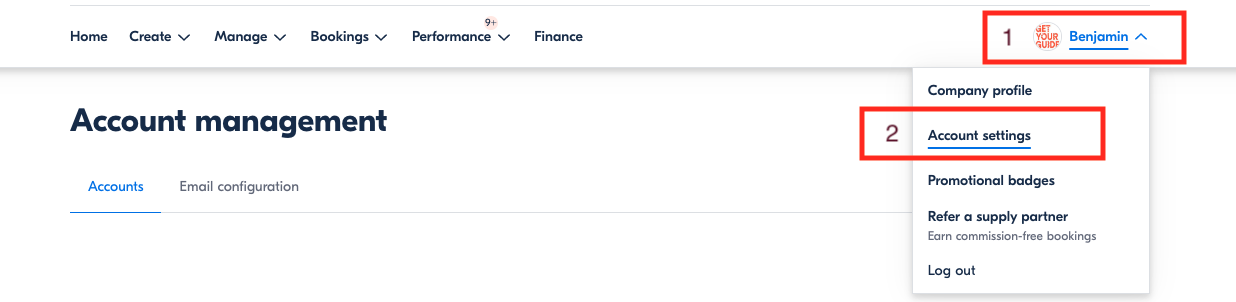
Log in to your GetYourGuide account, access your profile, and select Account settings followed by Account management.
Step 2: Add a New Contact
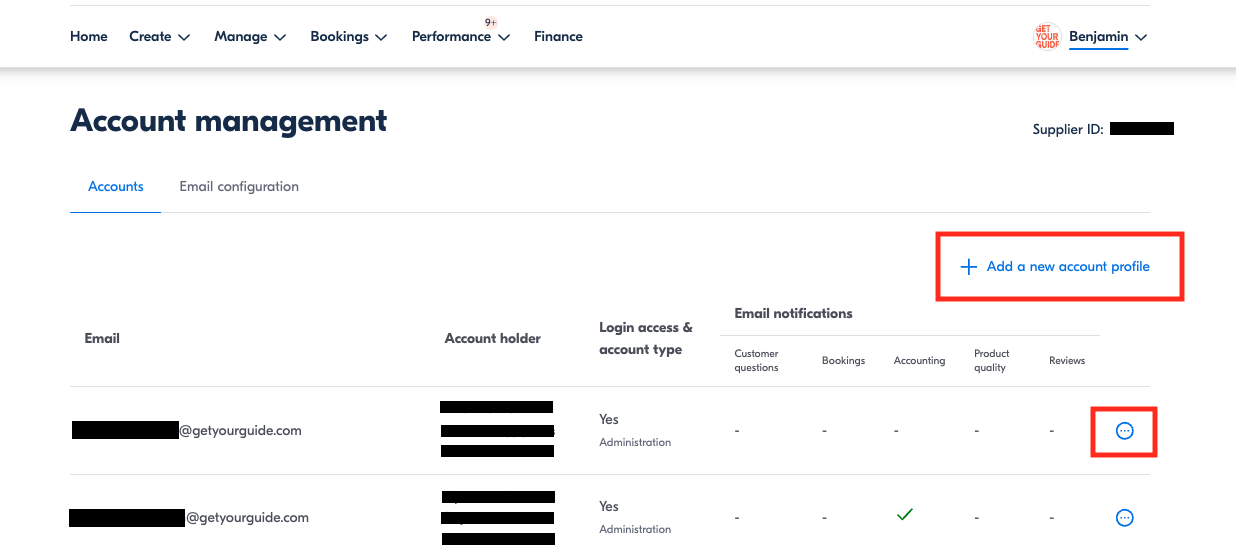
Click the option to Add a new contact in the account management section.
Step 3: Configure the Email Address
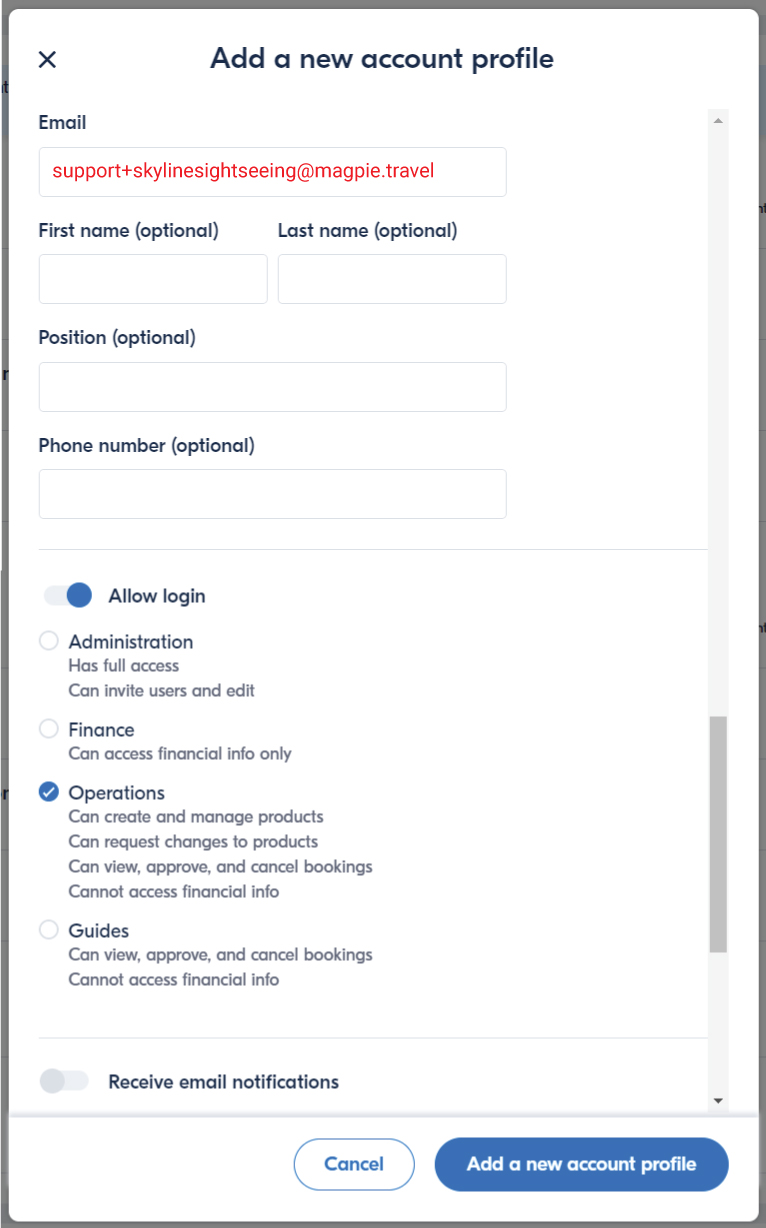
Enter the following email format:
support+[your account name]@magpie.travel
Replace [your account name] with your actual account name. For example, if your account is called "Skyline Sightseeing," the email would be support+skylinesightseeing@magpie.travel.
If you have more than one GetYourGuide account, add a unique number to the end of each email address to differentiate them.
Step 4: Leave Other Fields Blank
Leave the Name, Position, and Phone number fields empty during setup.
Step 5: Set Permissions
Assign Operations level permissions to the new contact.
Step 6: Disable Notifications
Keep the Receive notifications setting turned off.
After Setup
Once the contact is added, Magpie will be able to access your GetYourGuide product data and reviews, making them available for management within your Magpie dashboard.