
Create Products on Reseller Extranets
Overview
Magpie allows you to create products directly on connected reseller platforms, including Viator, GetYourGuide, Expedia, TUI Musement, and Airbnb. This eliminates the need to manually re-enter product information on each platform.
How to Export Products
Step 1: Access the Connections Tab
Navigate to your Connections section and select the reseller account where you want to upload your product.
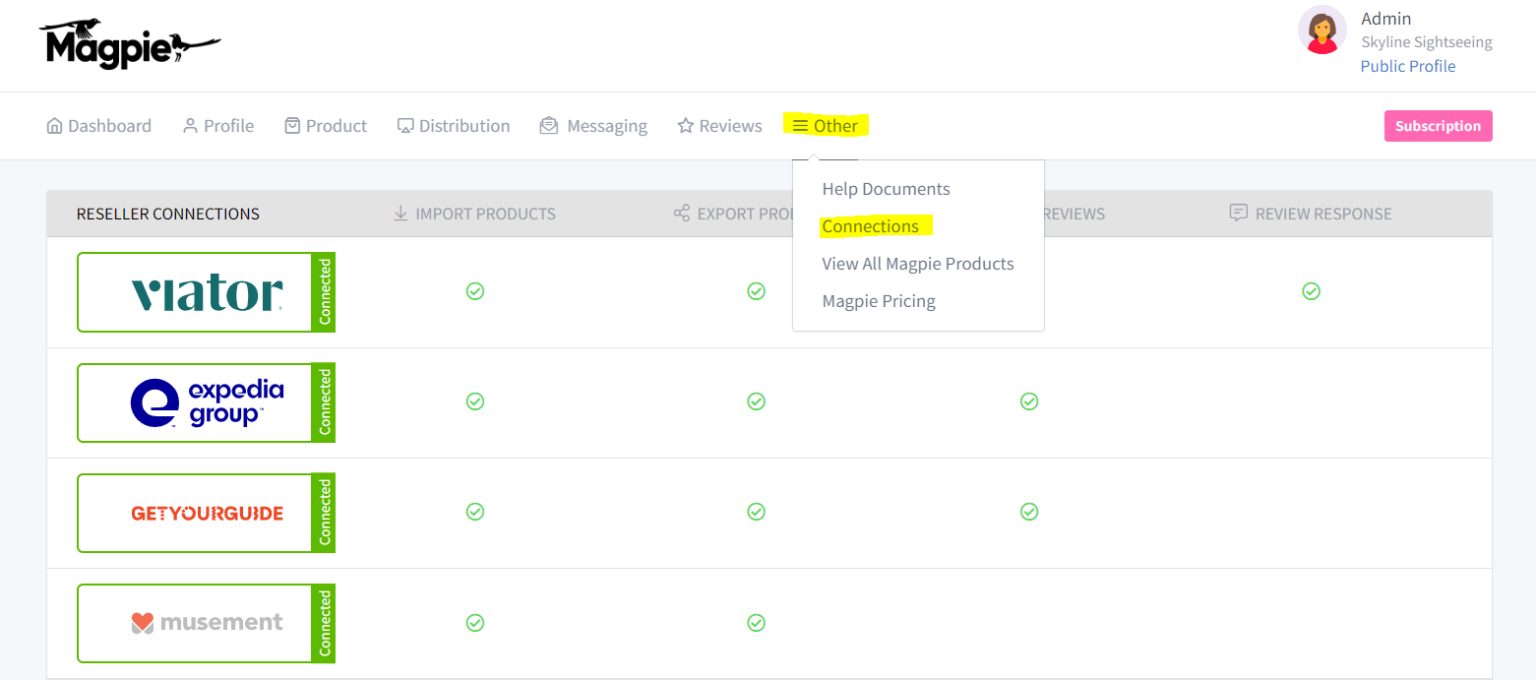
Step 2: Verify Your Connection Status
For Viator specifically, make sure your connection has been updated recently. Refer to the Viator Connection Issues guide if needed.
Step 3: Export the Product
Click the Export button. Magpie will create the product on the connected reseller's extranet.
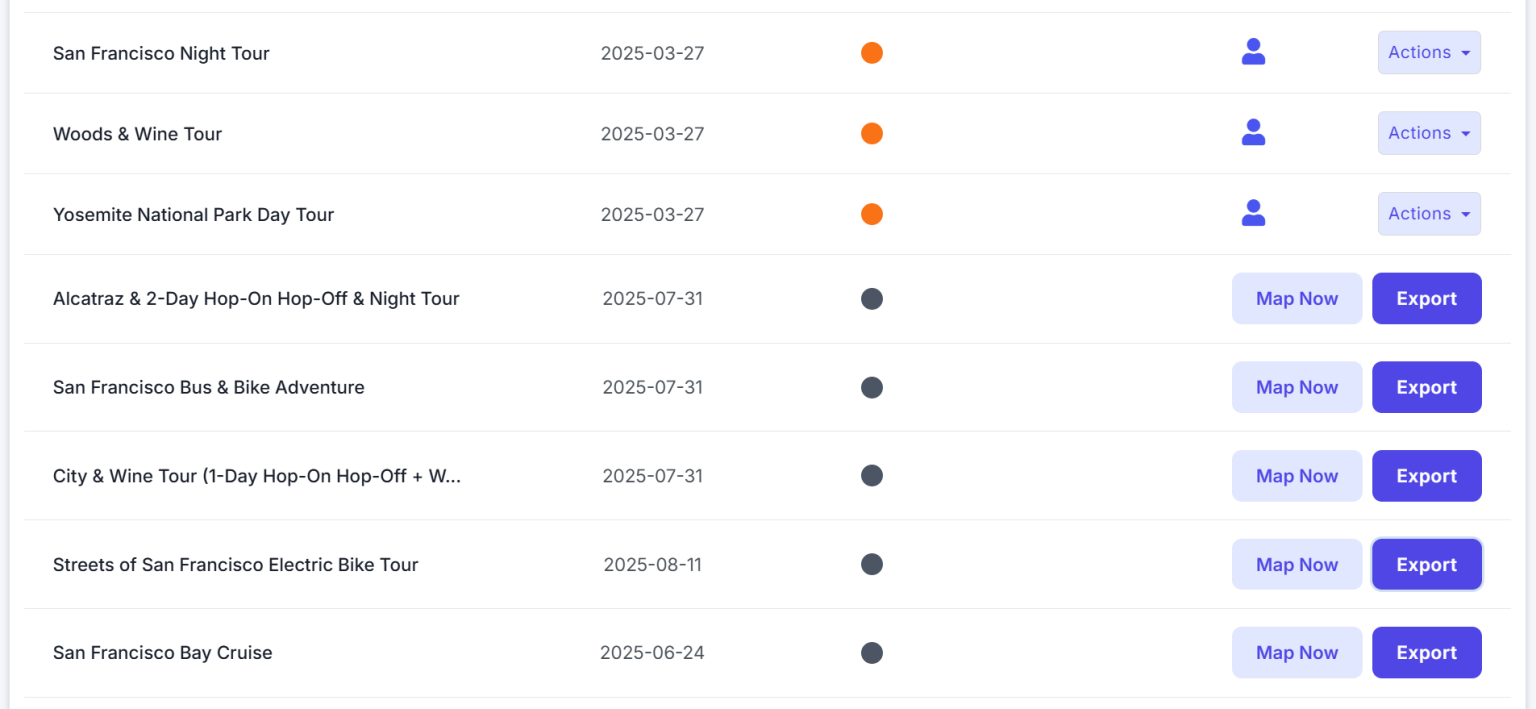
What Gets Transferred
The export sends comprehensive content fields to the reseller platform, including:
- Descriptions
- Highlights
- Inclusions and exclusions
- Other content fields that would otherwise be time-intensive to enter manually
Next Steps After Export
After exporting, you will need to visit the reseller platform's product page to:
- Set up availability calendars
- Configure pricing tiers and options
- Adjust any platform-specific settings that Magpie cannot access
Product Mapping
Once a product is exported, it becomes automatically mapped in the system. This means you can push future content updates from Magpie directly to the reseller platform without re-exporting.