Image Library
Overview
The Image Library is your central hub for managing all product images across your catalog. From here you can upload, search, sort, and perform bulk actions on your entire image collection.
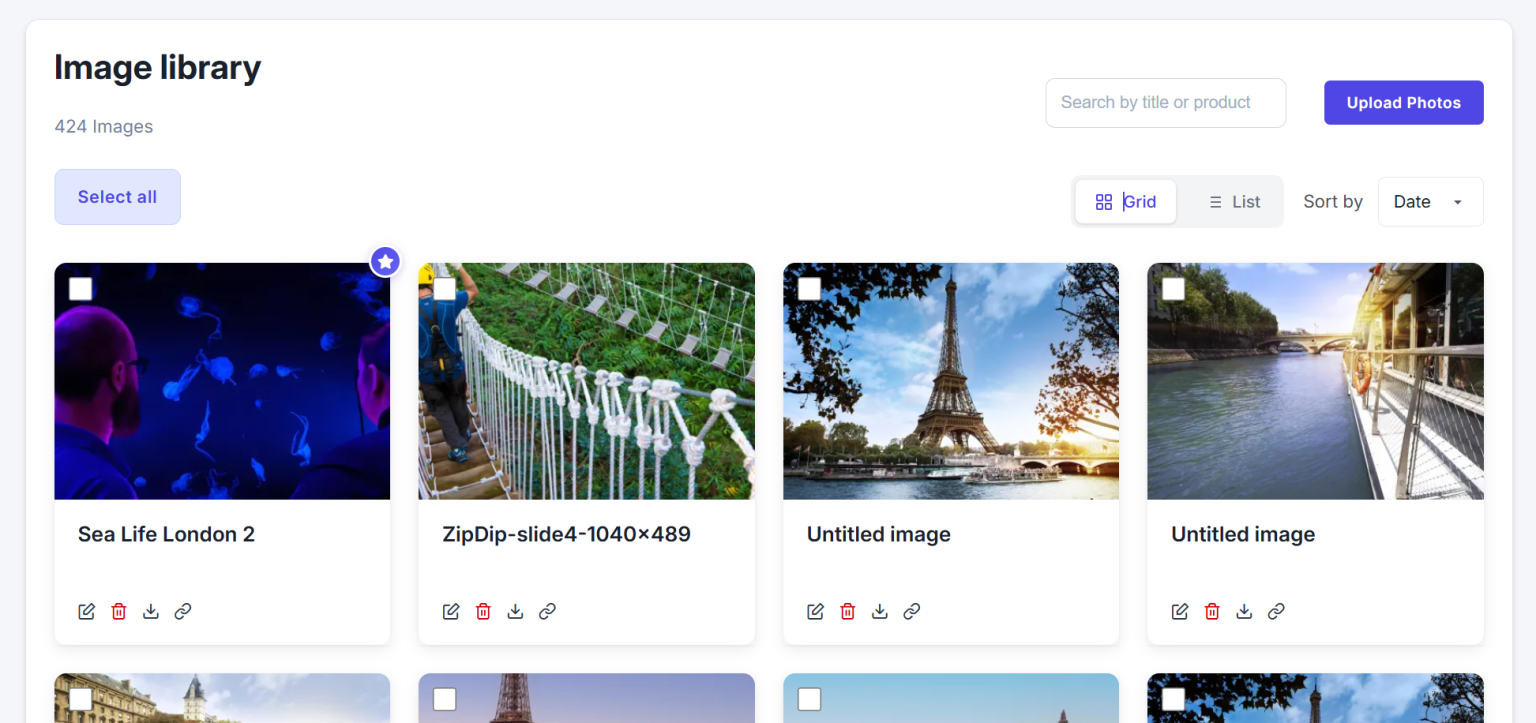
Header Controls
Search Bar
Use the search bar labeled "Search by title or product" to find specific images.
Upload Photos
Click this button to upload new images from your device.
Select All Checkbox
This is located in the controls section of the page. Checking this box will select every image currently visible in your gallery, making them available for bulk actions. A dropdown menu labeled Actions will appear next to it once an image is selected.
Actions Dropdown
This menu allows you to perform bulk actions on selected images.
- Delete - Delete Selected Images or All images in library. Note that deleting an image removes it from all associated products.
- Download - Download Selected Images or All images in library in a .zip file format.
View Toggle
Switch between Grid and List views for your images. The active view is highlighted.
Sort By
This dropdown allows you to sort images by Date, Size, or Name. Selecting an option will automatically update the gallery's order.
Image Gallery
Image Card
Each image is displayed in a card format.
- Image Checkbox - Use the checkbox in the top-left corner of each card to select individual images for bulk actions.
- Feature Image Star - The star icon in the top-right corner of an image indicates it is a featured image. Clicking on this star designates the image as a featured image for a specific product.
- Image Thumbnail - The thumbnail displays a preview of the image. Hovering over it reveals an overlay with the text "View Details," and clicking it opens a modal window with a larger preview and options to edit the image.
Image Information
Below each image thumbnail, you will find the image's name. Hovering over the name shows the original title of the image.
Image Actions
A row of icons under each image provides specific actions for that single image.
- Edit (Pencil icon) - Edit the image's details, such as its name or cropping.
- Delete (Trash can icon) - Delete the individual image. This action will prompt a confirmation modal to ensure you want to proceed.
- Download (Download icon) - Download the individual image to your device.
- Copy URL (Link icon) - Copy the image's URL to your clipboard.