
Listings Optimizer
Overview
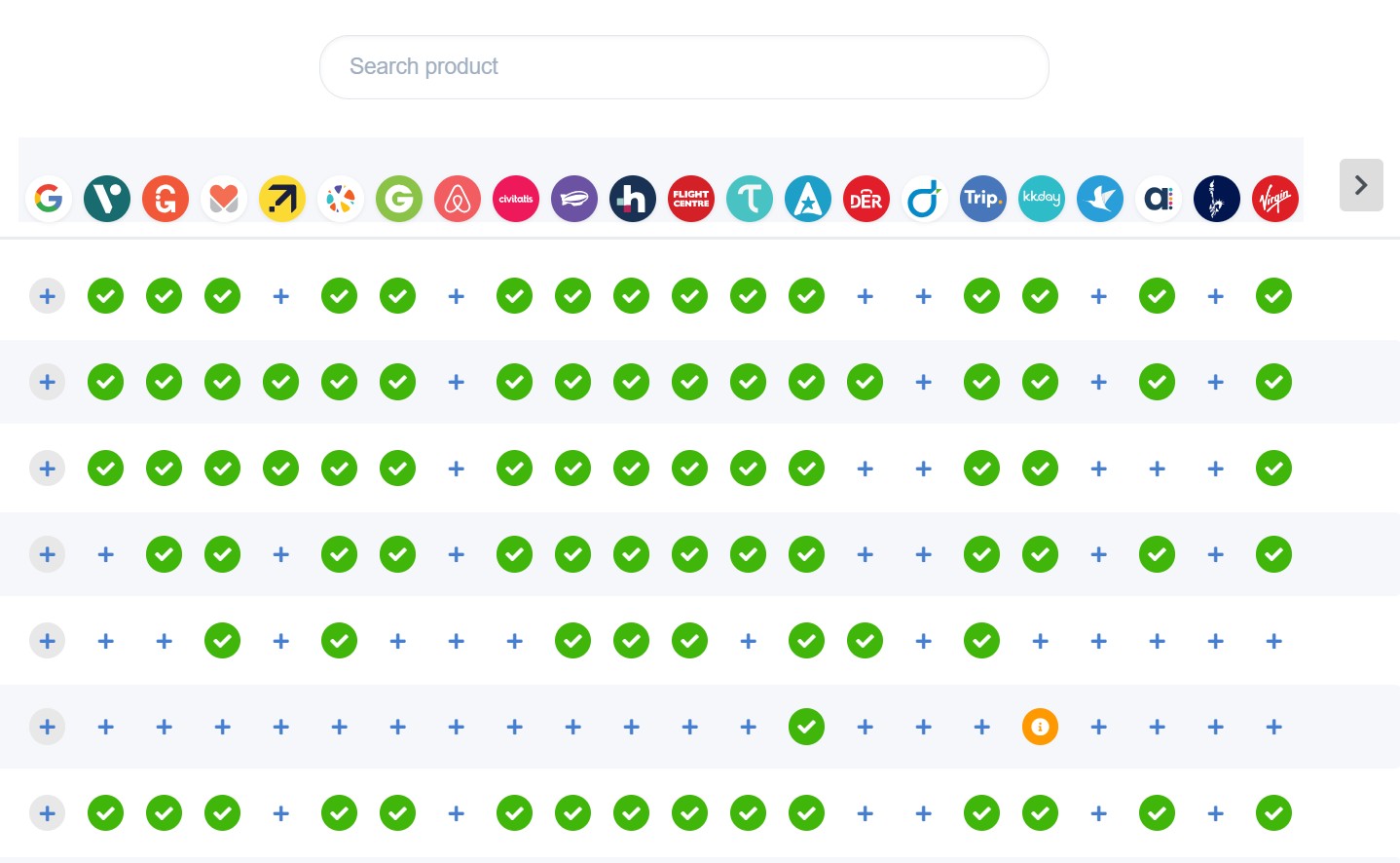
The Listings Optimizer displays your product listings across multiple reseller platforms in a grid format, giving you a bird's-eye view of your distribution status and helping you identify gaps in your coverage.
Search Functionality
- Search Type Toggle - Switch between searching by Product or by Reseller
- Product Search - Find specific products by name
- Reseller Search - Filter the grid to show only specific reseller platforms
- Real-time Results - The grid updates automatically as you type
Reseller Navigation
The top row of the grid displays reseller platform logos and names:
- Navigation Controls - Use the left and right chevron buttons to scroll through reseller columns when you have more platforms than can fit on screen
- Direct Links - Click a reseller's logo to navigate directly to that platform's management page
Product List
The left column lists all of your available products. Click any product name to open its detailed editing page.
Status Indicators
The grid cells use visual indicators to show the listing status for each product-reseller combination:
- Green Checkmark - The listing is complete and active. Click to view or edit the listing details.
- Plus Sign - No listing exists yet. Click to create a new listing for this product on that platform.
- Yellow Info Circle - The listing is pending or needs attention. Click to review and resolve any issues.
How to Use the Optimizer
- Scan the grid to identify products that are missing listings on key reseller platforms (shown by plus signs)
- Click the plus sign to create new listings where gaps exist
- Review any yellow indicators to address pending issues
- Use the search and filter tools to focus on specific products or platforms