Setting Up Google Things to Do (Sections View)
Overview
Sections view is the field-level editor for products that have already completed the Setup Wizard. It shows every TTD field at once, grouped into six collapsible sections, and is the recommended view for day-to-day edits on live products. Operators editing a live listing typically want direct field control, not a guided flow, and Sections is built for exactly that.
Accessing the Configuration
Open a product and click the dedicated Google Things to Do tab.
If the product has already finished the wizard, you'll see a Sections / Wizard toggle in the header. Sections is the default for live products.

The Active Toggle
At the top right of the panel there's an Active / Inactive switch. It only enables when all required fields are filled: landing URL, title, description, at least one POI, and at least one image. If any of those regress, the system auto-deactivates and waits for you to re-confirm. This is intentional: it keeps incomplete products out of the Google feed.
Section 1: Google Settings
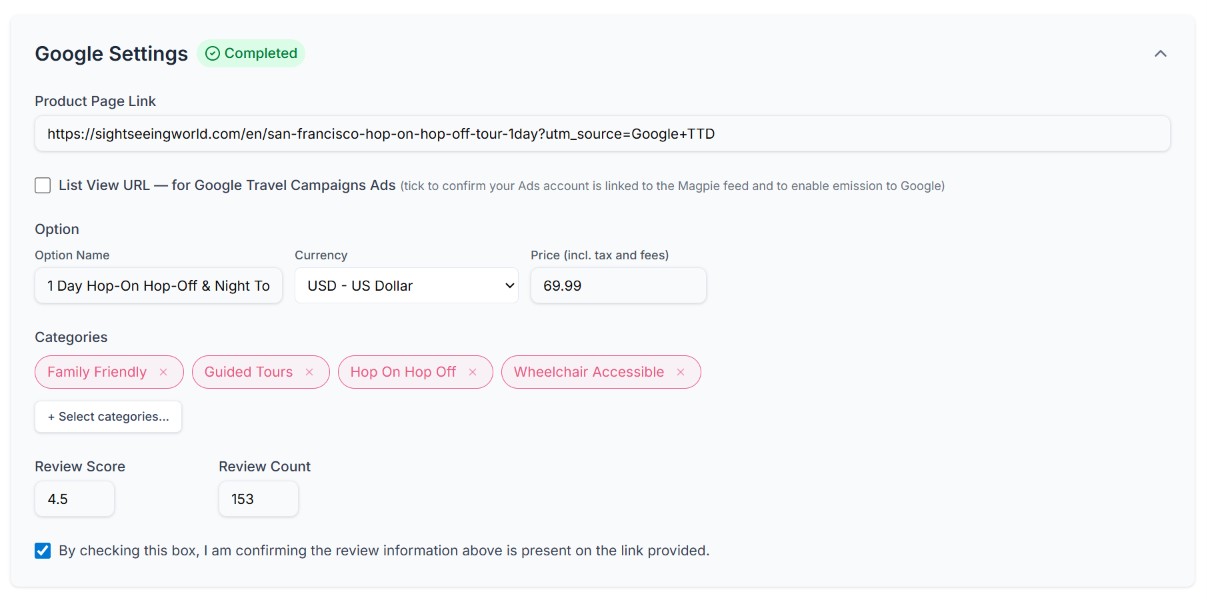
- Product Landing Page Link. the URL Google opens when a buyer taps the card. It must load the same product the listing describes.
- Google Travel Campaigns Ads. tick the checkbox to confirm your Ads account is linked to the Magpie feed and enable emission to Google. Ticking the box exposes a List View URL field where you can supply a separate landing URL for paid Ads placements.
- Option Name. label for the booking option, e.g. "General Admission".
- Currency. pulled from the account default; override if you sell in a different currency.
- Price. all-in adult price including taxes and fees. Must match the landing page.
- Categories. 3 to 5 highly relevant Google categories. Mutually exclusive pairs auto-disable each other.
- Review Score and count. your landing page's review widget rating value and review count. Unlocks the star rating on the Google card.
Section 2: Name, Description, Highlights, Inclusions and Exclusions
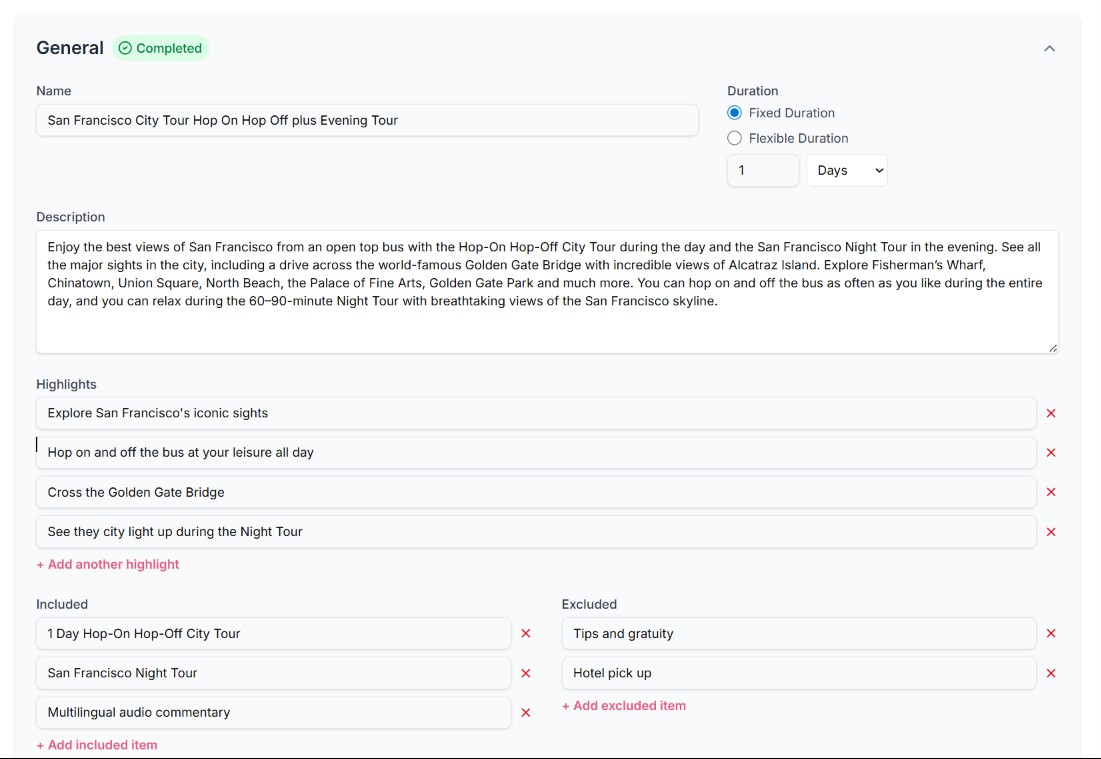
- Product Name (TTD). Google-specific name that overrides the internal Magpie name on the feed. Include the location and tour type for better search visibility. Max 150 chars; aim for ≤ 50. No emoji.
- Description. what the experience is and why it's worth booking. Up to 16,000 chars, ≤ 10,000 recommended. HTML allowed:
<h1>–<h5>,<ul>,<ol>,<li>,<strong>,<em>,<p>,<br>. - Highlights. bullet points emphasising the most compelling elements.
- Inclusions. exactly what is covered by the price.
- Exclusions. what is not covered by the price.
Best practice: never put discounts or promotions in the title. Google rejects them automatically.
Section 3: Must Know and Cancellation
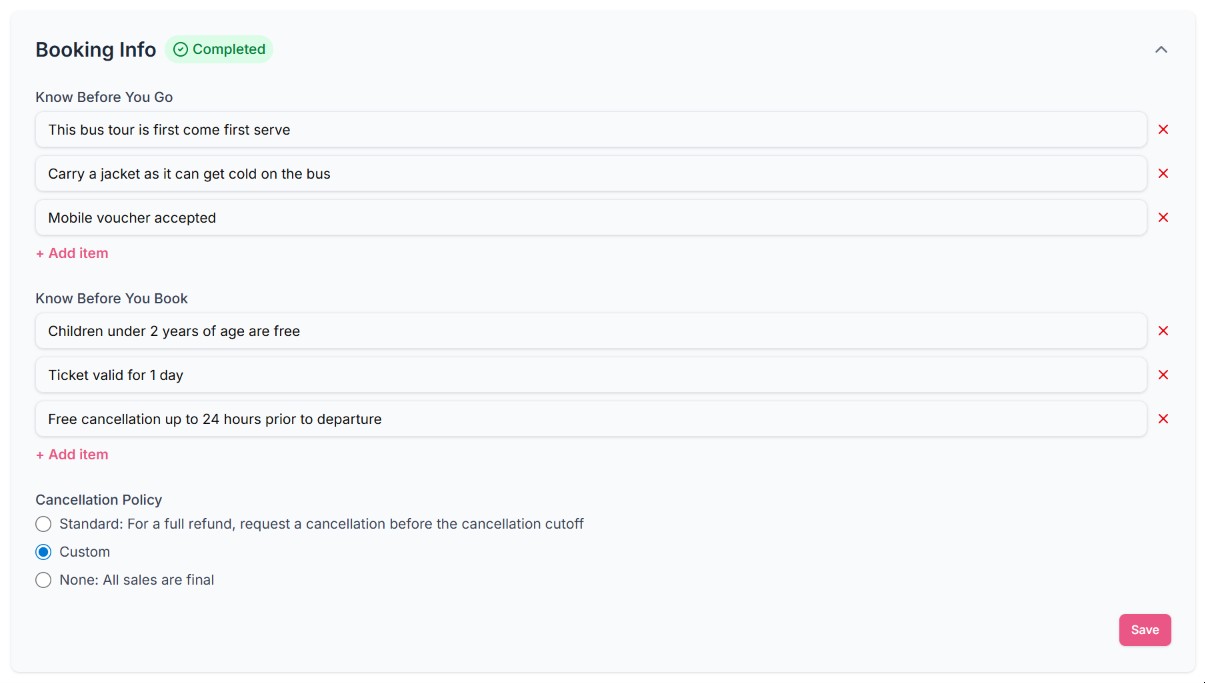
- Must know. important details travelers need ahead of the experience or before they book: what to bring, age or fitness requirements, accessibility, dress code, anything else worth flagging in advance.
- Cancellation policy. Standard / 24h by default, or pick a custom policy + cutoff.
Section 4: Locations
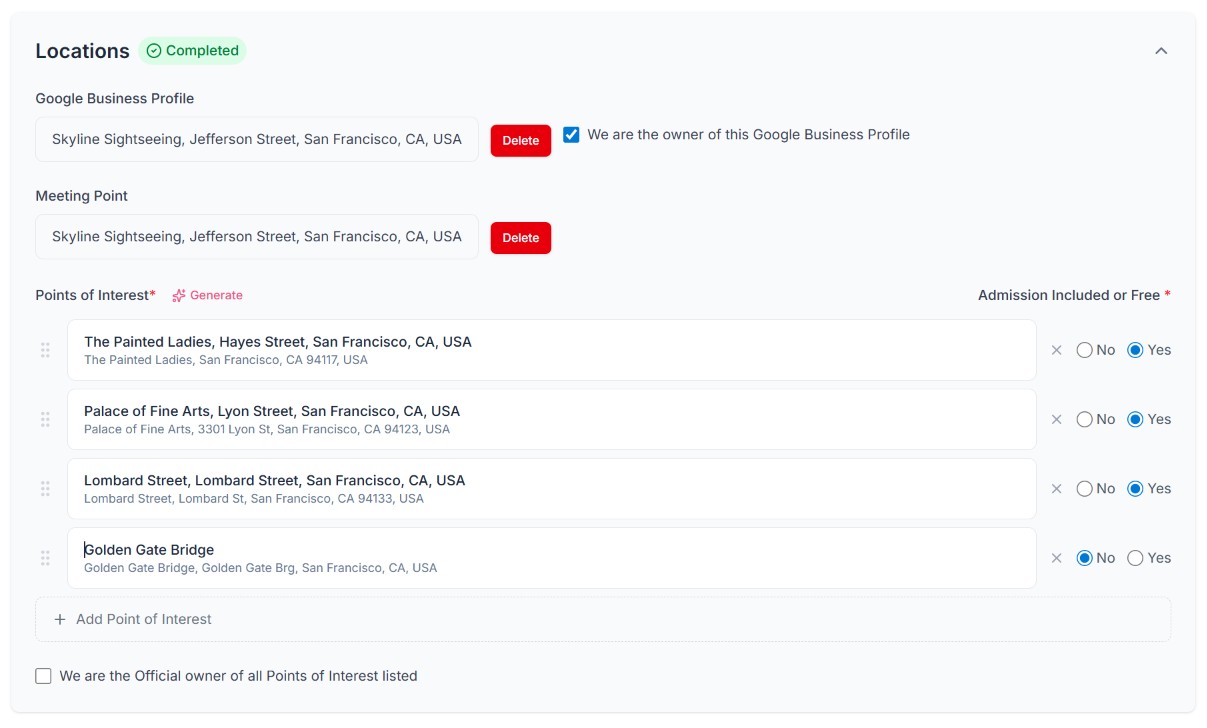
- Google Business Profile. link the operator's GBP. Tick I am the owner only if you actually own the profile.
- Meeting Point. the start address, picked from Google's official listings (not free-form text).
- Points of Interest. every attraction the experience visits. For each: included/not-included admission, and an Official operator flag if your company owns the attraction.
Best practice: at least one POI is required for the product to appear in the Attractions Booking module, a huge surface area to ignore.
Section 5: Images
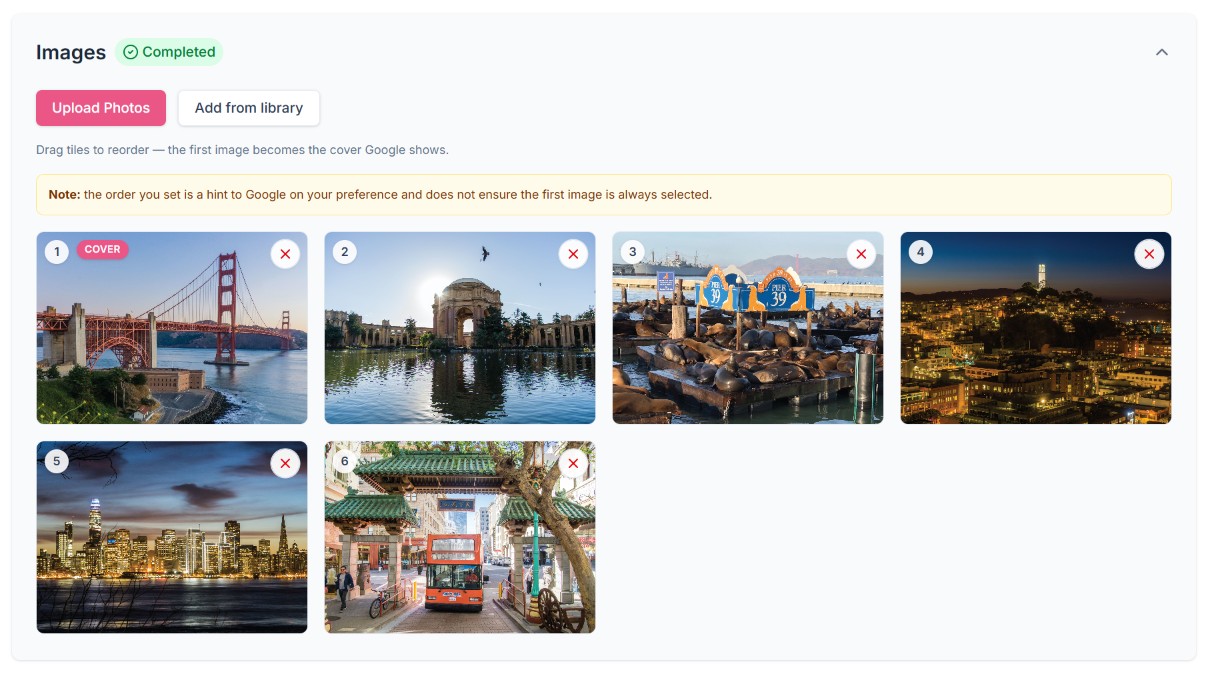
- Reorder. drag tiles. First image becomes the cover.
- Add from library. pulls from the full account image library.
- Add new. upload directly. Minimum 300 × 300 px; aim for 1024 px+ on the long edge.
- Square aspect ratio renders best on Google cards.
- JPG or PNG only, non-animated. GIFs are rejected.
The picker blocks anything below 300 × 300 px before you can save: Google rejects them as "Image too small".
Section 6: Language Versions
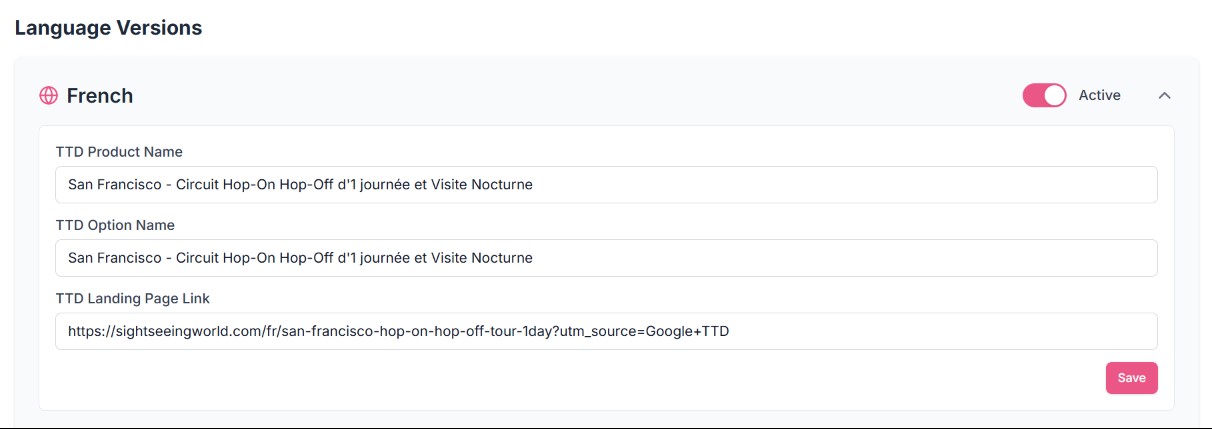
Available on Enterprise plans only. Multi-language operators can publish a localised version of the product for each market. Only three fields can be changed per language; everything else is inherited from the master record:
- Product Name (TTD)
- Option Name
- Product Landing Page Link
Each language version is stored as its own TTD record and pushed to the matching Google locale, but all pricing, categories, locations, images, descriptions, highlights, and policies stay locked to the master.
Saving and Approval
- Edits across all sections accumulate in a single pending save. Click Save in the header to flush them.
- Destructive actions (deleting an option, removing a POI) save immediately.
- Re-saving a previously approved product does not require re-approval; Magpie admins only re-check when the operator marks it inactive or when content materially changes.
Best Practices Checklist
- ✅ Title matches landing page exactly
- ✅ Price matches landing page exactly
- ✅ At least one POI, with admission status tagged
- ✅ 3 to 5 relevant categories, no keyword spam
- ✅ ≥ 5 images, all ≥ 1024 px on the long edge
- ✅ Active toggle ON only after every required field is filled
Review Process
After configuration, products enter a 1 to 2 business day Magpie review. Approved products are pushed to Google in the next feed sync (within 24 hours). If anything is missing or fails validation, the admin team will reach out with the specific gap before submitting.