Viator Connection Issues
Overview
With the introduction of Two Factor Authentication (2FA) on Viator, you may need to periodically refresh your Viator connection to maintain functionality. This guide walks you through the update process.
Steps to Update Your Connection
Step 1: Access the Viator Connection Page
Navigate to your Viator Connection settings within the Magpie platform.
Step 2: Initiate the Update
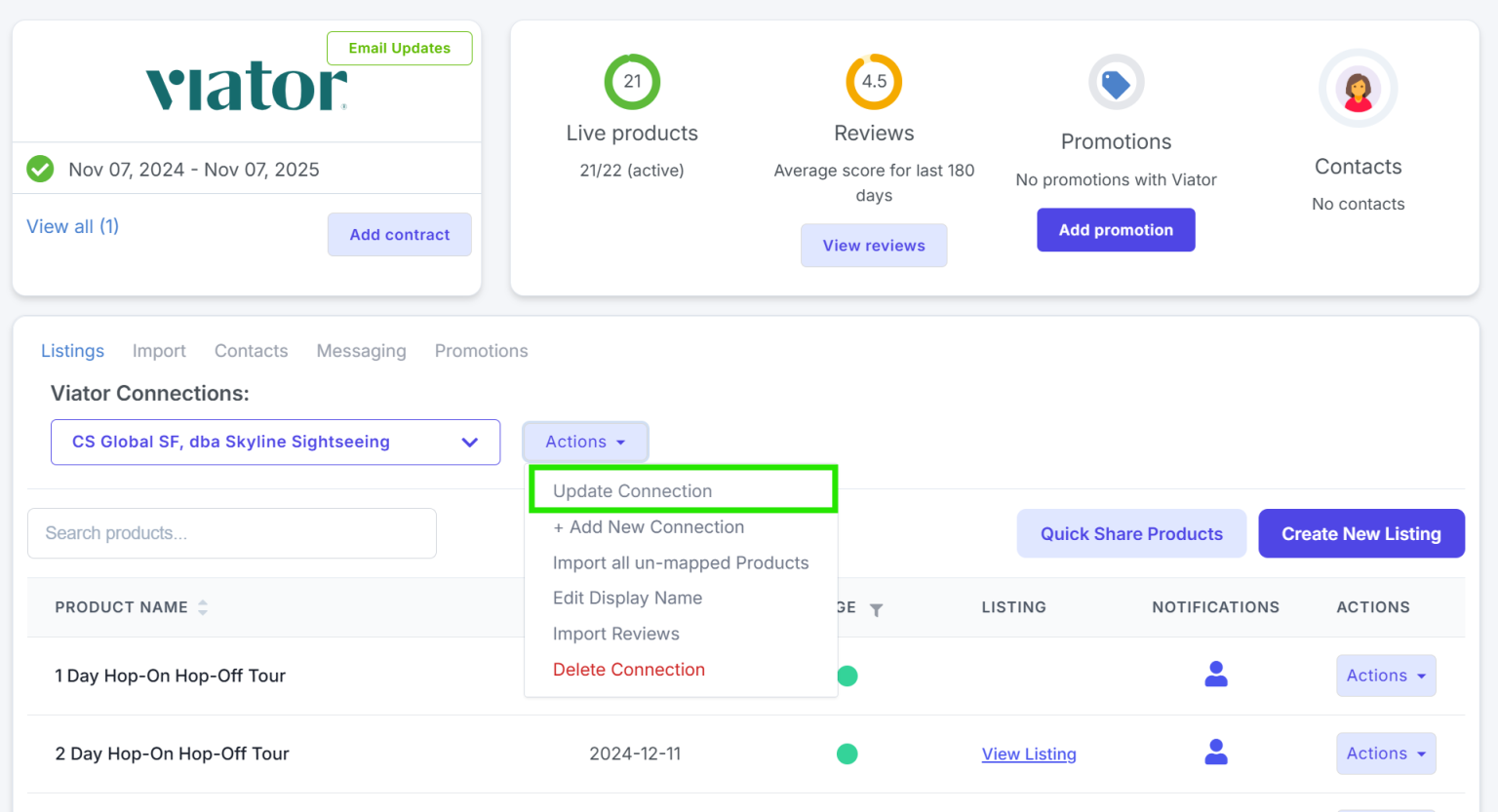
Click Actions and select Update Connection from the menu options.
Step 3: Re-enter Your Credentials
Input your login credentials. If the system displays a generic email address (such as connections@magpie.travel), you can replace it with your personal Viator credentials.
Step 4: Enter the Verification Code
Viator will send a verification code to your registered email address as part of the 2FA security process. Check your inbox for this code.
Step 5: Complete the Update
Enter the verification code into the designated field and finalize the connection update.
When to Refresh
You should update your connection whenever you notice:
- Products are not syncing properly between Viator and Magpie
- Import or export operations are failing
- You receive authentication error messages
Regular refreshing ensures secure, continued access to your integrated Viator account.