Search Campaigns for Travel (AI Max) Setup Guide
Google has replaced legacy Travel Campaigns with Search Campaigns for Travel, powered by AI Max. Migration is complete: your existing campaigns were converted automatically, and your activities now run as Travel Promotion Ads (TPA) using the same Google Things to Do feed you keep in sync through Magpie.
You can open a migrated campaign at any time to add a text ad and switch on the other optimization tools these campaigns unlock. The steps below walk through the full setup, useful whether you're reviewing a migrated campaign or building a new one.
Before you begin, you'll need an active Google Things to Do feed in Magpie, a Google Ads account linked to Magpie (Feed ID 485698908), and your products fully configured with titles, prices, categories, locations, and images.
Set up your campaign
Connect your feed
Search Campaigns for Travel require your Magpie Things to Do feed (Feed ID 485698908) to be connected to your Google Ads account. If you already linked it for Travel Campaigns, you're set, so skip to Step 2. Otherwise, link it now:
1. Open Data Manager. Access the Data Manager section within your Google Ads account's Tools menu.
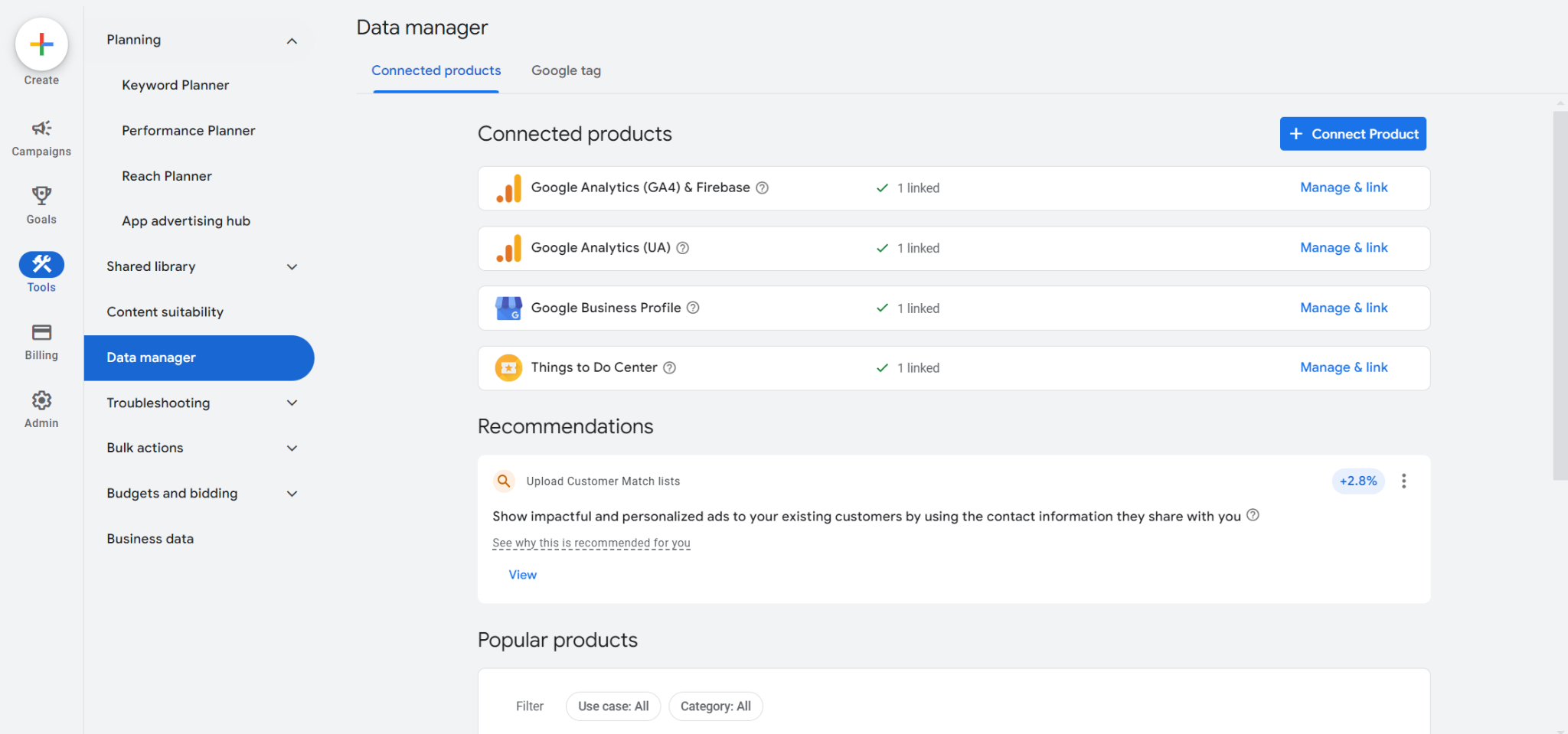
2. Manage and Link. Click Manage and Link on the Things to do center list item.
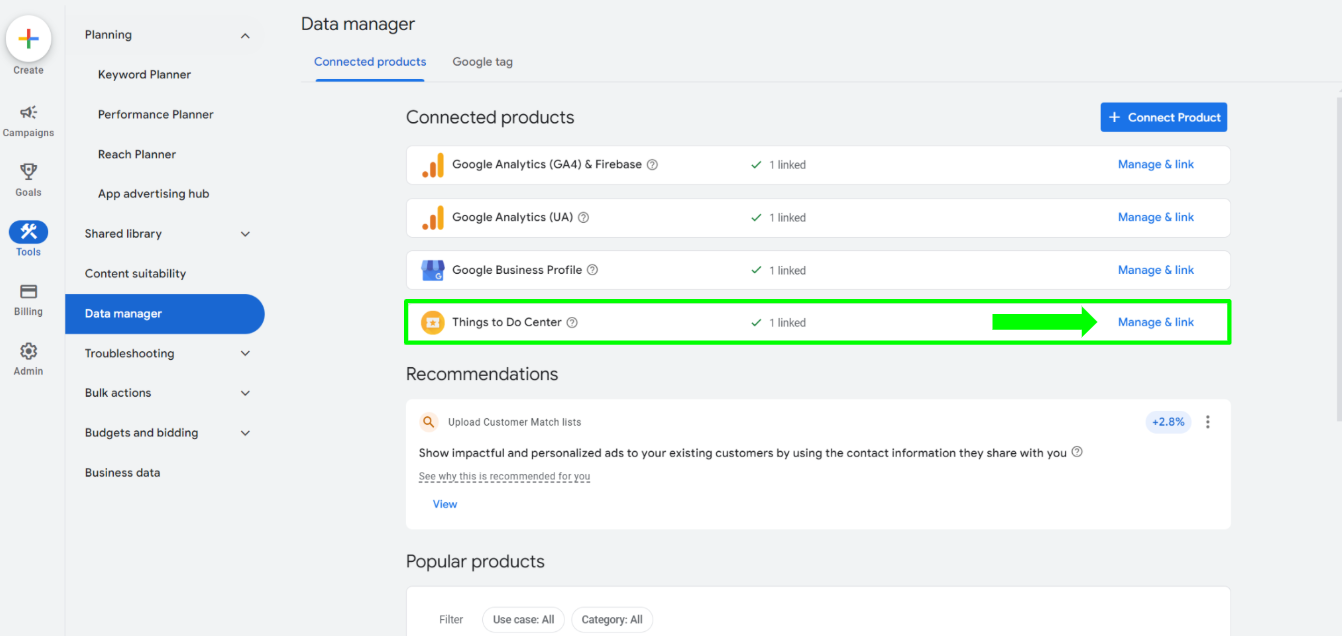
3. Link Things to Do Center. Select the Link Things to Do Center button.
4. Enter the Magpie Feed ID. In the Things to do center ID field, enter 485698908 (the Magpie Feed ID), then click Send request.
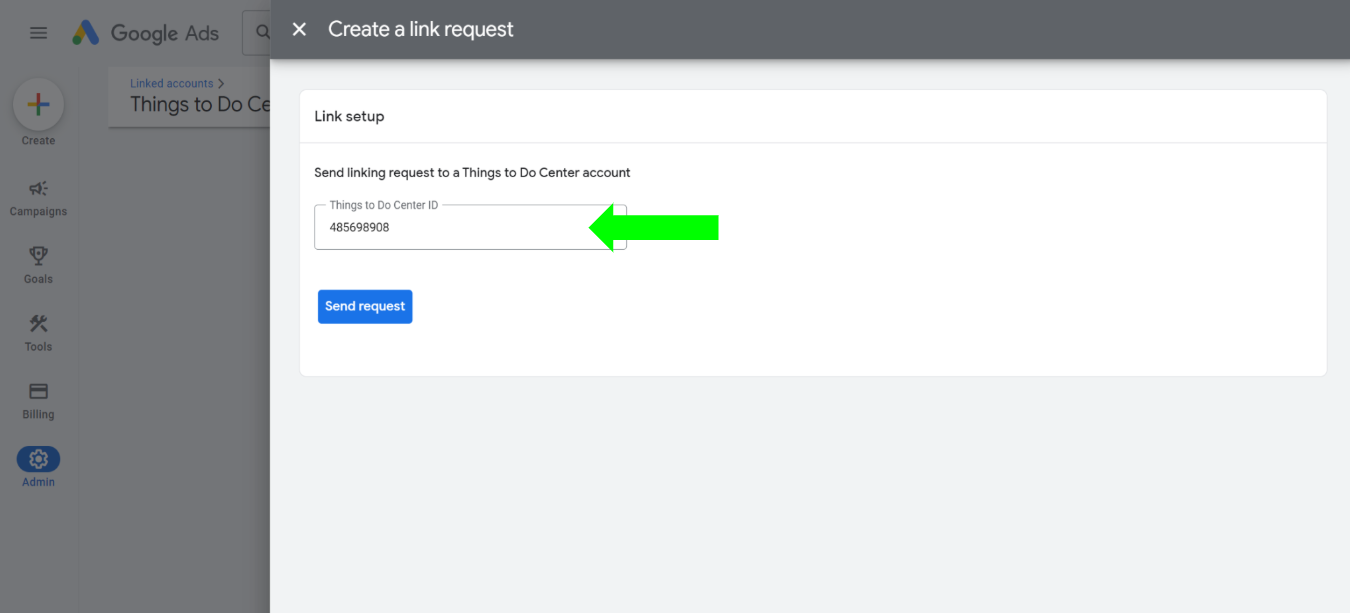
5. Notify Magpie. Complete the form below so Magpie knows to accept your linking request.
Allow 24 to 48 hours (Monday to Friday) for Magpie to accept the request and upload your feed. Once linked, it appears in Google Ads as 485698908 · Magpie Travel · Things to Do Center feed.
Start a new campaign
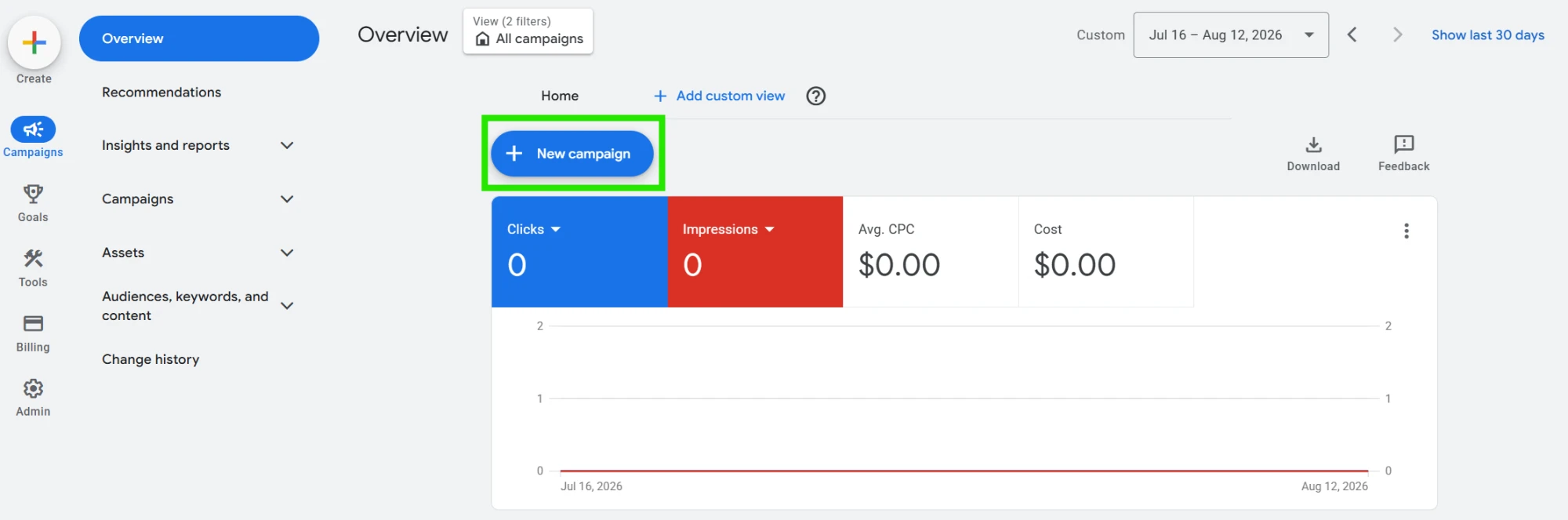
From the Campaigns → Overview screen, select + New campaign (or the Create button in the top-left).
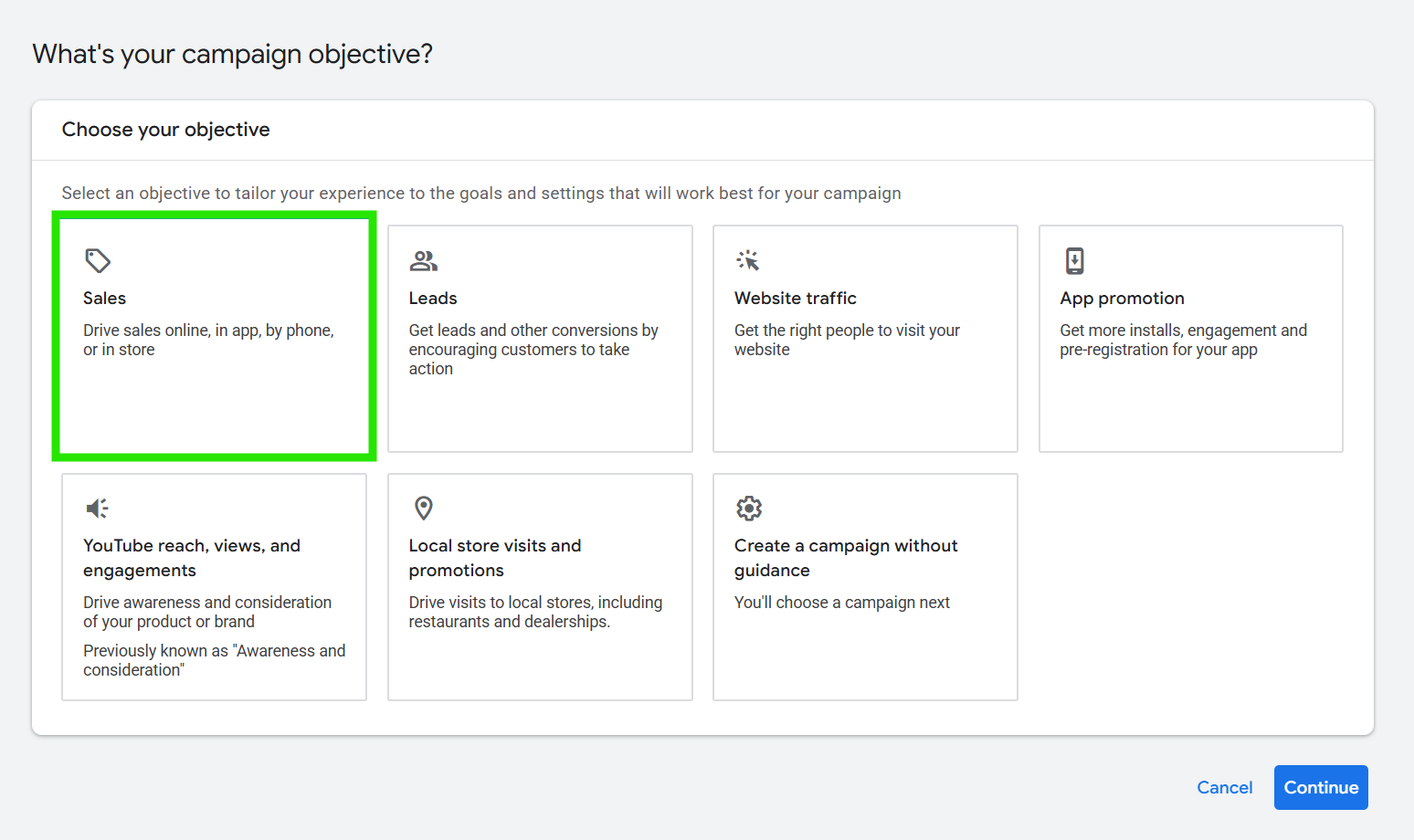
Choose the Sales objective
On What's your campaign objective?, select Sales ("Drive sales online, in app, by phone, or in store"), then Continue.
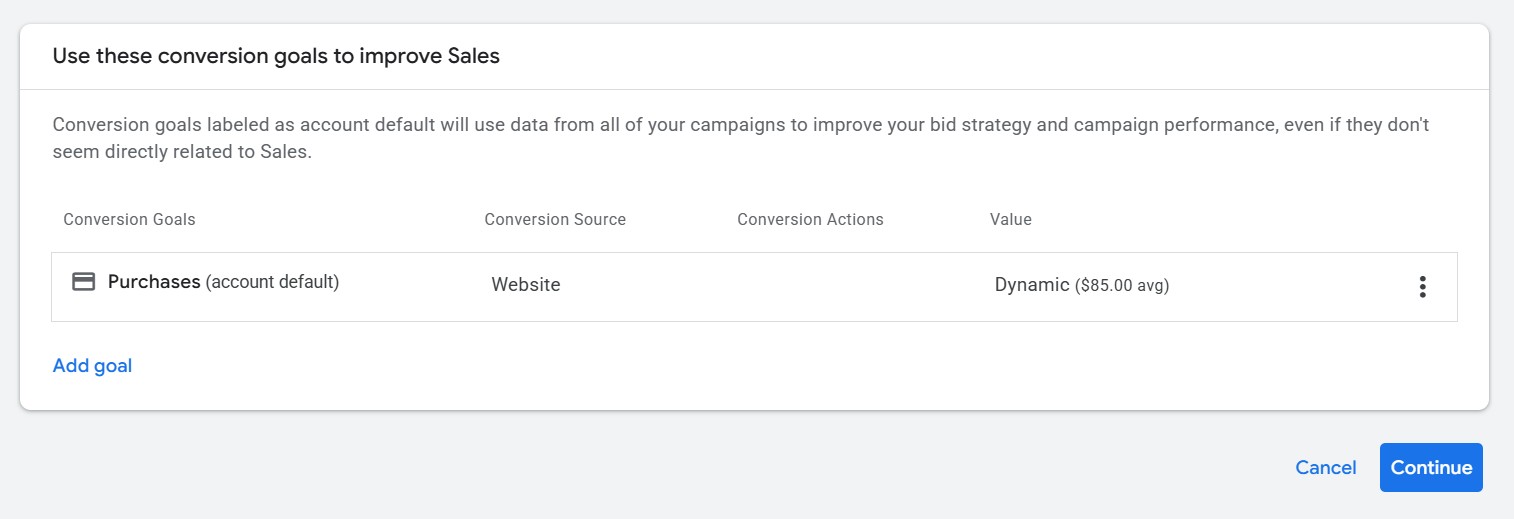
Confirm your conversion goals
On Use these conversion goals to improve Sales, keep your account-default conversion goals (for example, Purchases) or select Add goal to choose specific conversion actions for this campaign, then Continue. Search Campaigns for Travel rely on conversion-based bidding, so make sure at least one valid conversion goal is in place.
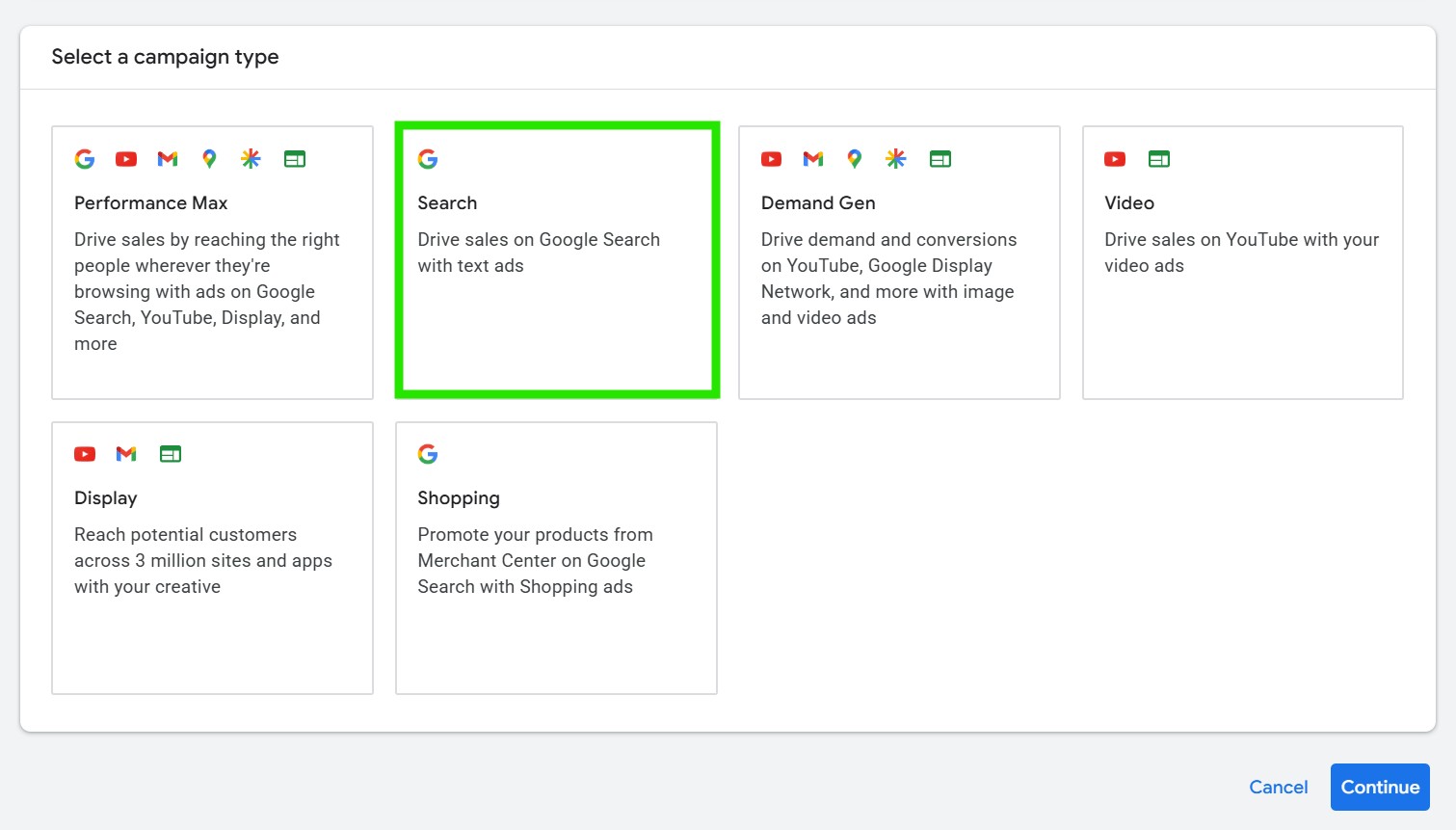
Choose Search as the campaign type
Select Search ("Drive sales on Google Search with text ads"), then Continue. Search Campaigns for Travel use the standard Search campaign type, not the legacy Travel campaign type.
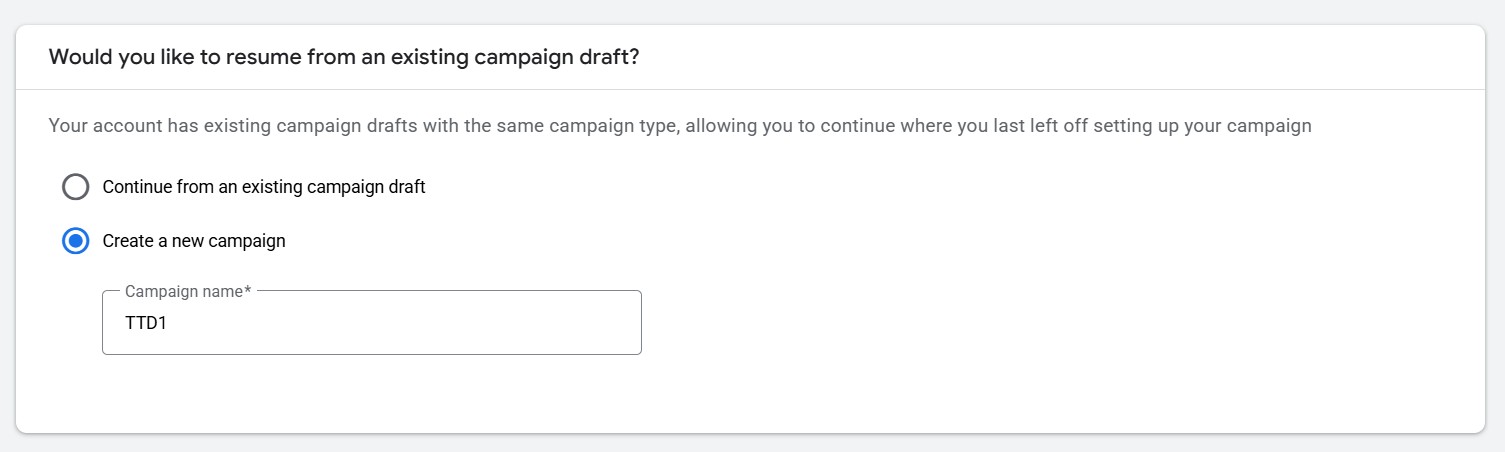
Create the campaign and name it
If Google offers to resume an existing draft, choose Create a new campaign, then enter a descriptive Campaign name (for example, TTD1) so it's easy to identify later.
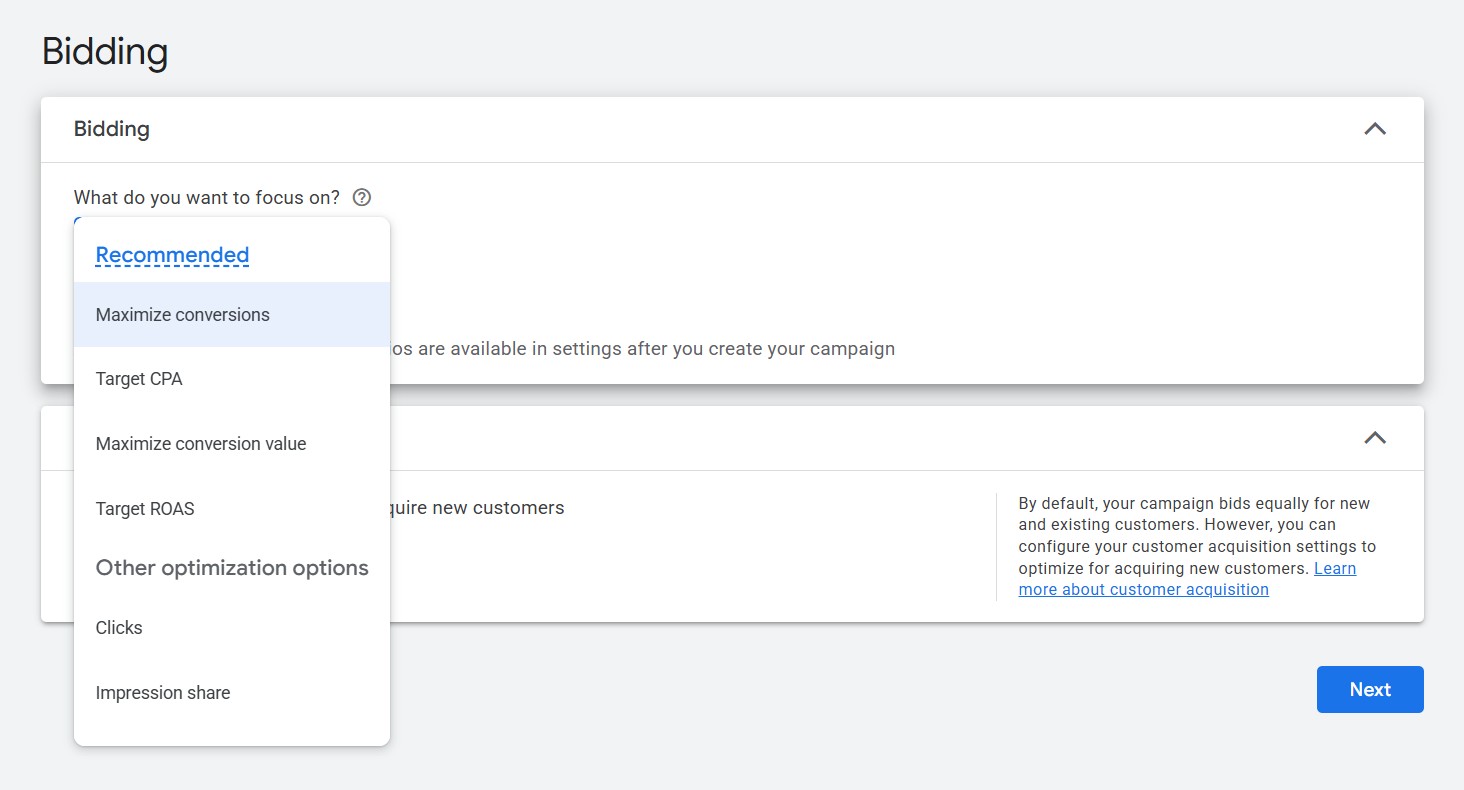
Set your bidding
On the Bidding screen, under What do you want to focus on?, choose a conversion-based strategy: Maximize conversions (or Maximize conversion value). You can optionally add a Target CPA or Target ROAS. Leave Customer acquisition on its default unless you specifically want to optimize for new customers, then select Next.
During the beta, conversion-based autobidding is required. Manual CPC is expected to remain available until general availability in H2 2026. If one campaign runs multiple formats, autobidding lets AI Max shift budget toward the best-performing formats.
Configure your campaign settings
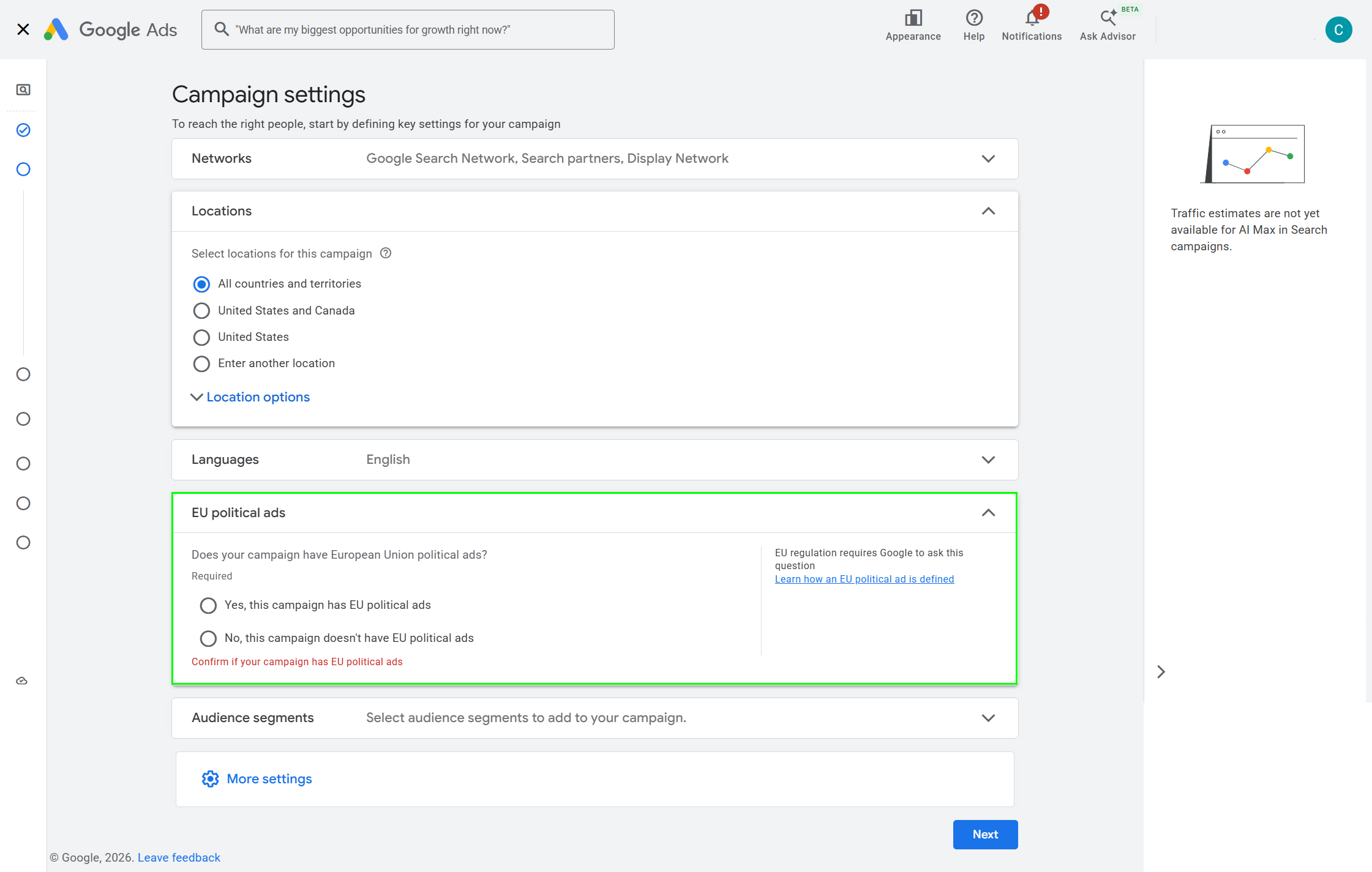
The Campaign settings screen groups several settings that used to be separate. Work down the panel:
- Networks: keep Google Search Network and Search partners (and the Display Network, both recommended) to extend your reach, or narrow to Google Search only.
- Locations: choose where your ads serve, All countries and territories, a preset like United States, or Enter another location for specific markets. Under Location options, keep Presence or interest (recommended) so you reach travelers planning to visit.
- Languages: add the languages your customers speak (English is selected by default).
- EU political ads (required): answer the question. For most tour and activity operators, select No, this campaign doesn't have EU political ads. The campaign can't continue until this is answered.
- Audience segments: optionally add relevant travel segments (for example, Family Vacationers). Keep them in Observation mode so you gather data without narrowing reach.
Select Next when done.
Turn on AI Max and select your feed
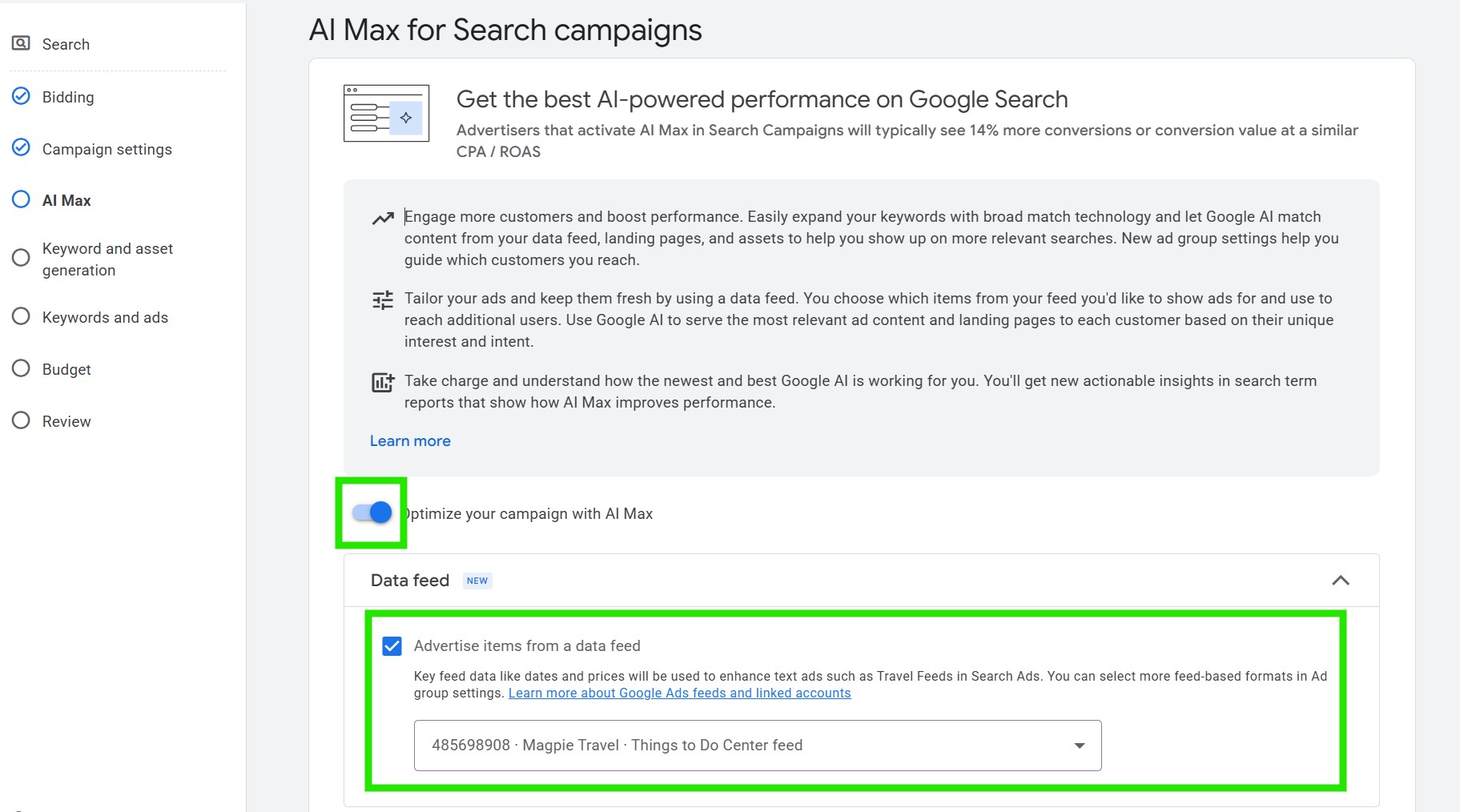
On the AI Max for Search campaigns screen, switch on Optimize your campaign with AI Max. AI Max must be on to run Travel ads in Search campaigns; advertisers who activate it typically see around 14% more conversions or conversion value at a similar CPA/ROAS. Keep the AI Max sub-settings text customization and final URL expansion enabled, text customization must be on for feed-based text ads (Travel Feeds in Search Ads) to trigger.
In the Data feed panel, tick Advertise items from a data feed and confirm 485698908 · Magpie Travel · Things to Do Center feed is selected. Key feed data such as dates and prices is used to enhance your text ads. Only one feed can run per campaign, so if just one feed is linked the selector shows it by default.
How feed changes are handled:
- If the account's default feed changes, every campaign using the default feed updates automatically.
- Campaigns with an explicitly selected feed (or with feed usage disabled) are not affected by account-level default changes.
- If an explicitly linked feed is deleted at the account level, the campaign throws an error and its feed-based formats pause until you select a valid feed.
Set up your ad group, formats, and item group
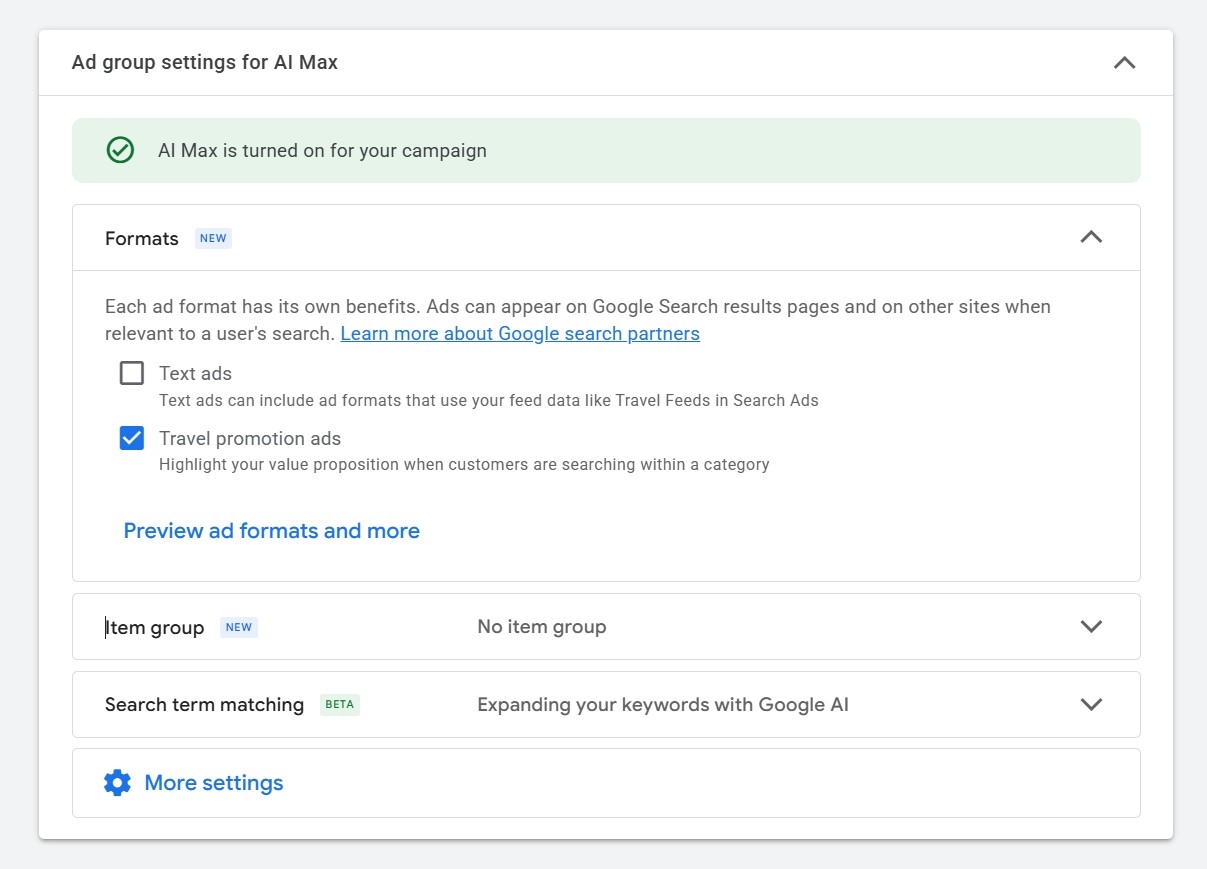
The Keywords and ads screen opens with Ad group settings for AI Max, and a banner confirms AI Max is turned on for your campaign.
Under Formats, the Text ads checkbox decides how your campaign runs:
- Leave Text ads unchecked (Travel promotion ads only): this mirrors the traditional Travel Campaigns you've run until now. Your budget goes purely behind the feed items themselves, and there's no separate search ad to build. This is how your migrated campaigns run today. Travel promotion ads are on by default.
- Check Text ads: in addition to the feed items, you'll create a standard Responsive Search Ad, and your feed items are also displayed on that search ad (Travel Feeds in Search Ads). This adds feed-enhanced text ads but requires text customization (Step 9), an item group, and at least one search ad to complete.
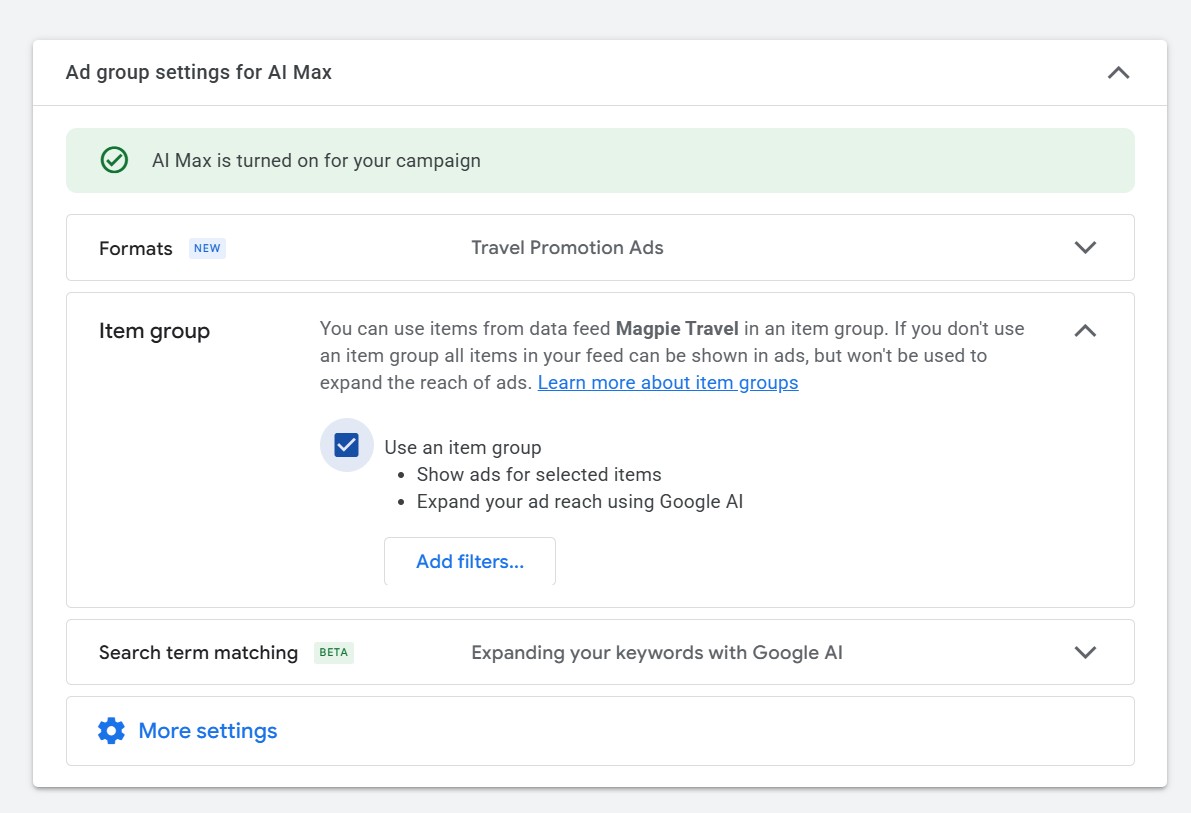
Under Item group, tick Use an item group to show ads for selected feed items and let Google AI expand your reach. The item group doubles as feed-based targeting: think of your legacy US Travel Campaign becoming a Search Campaign for Travel with a US item group.
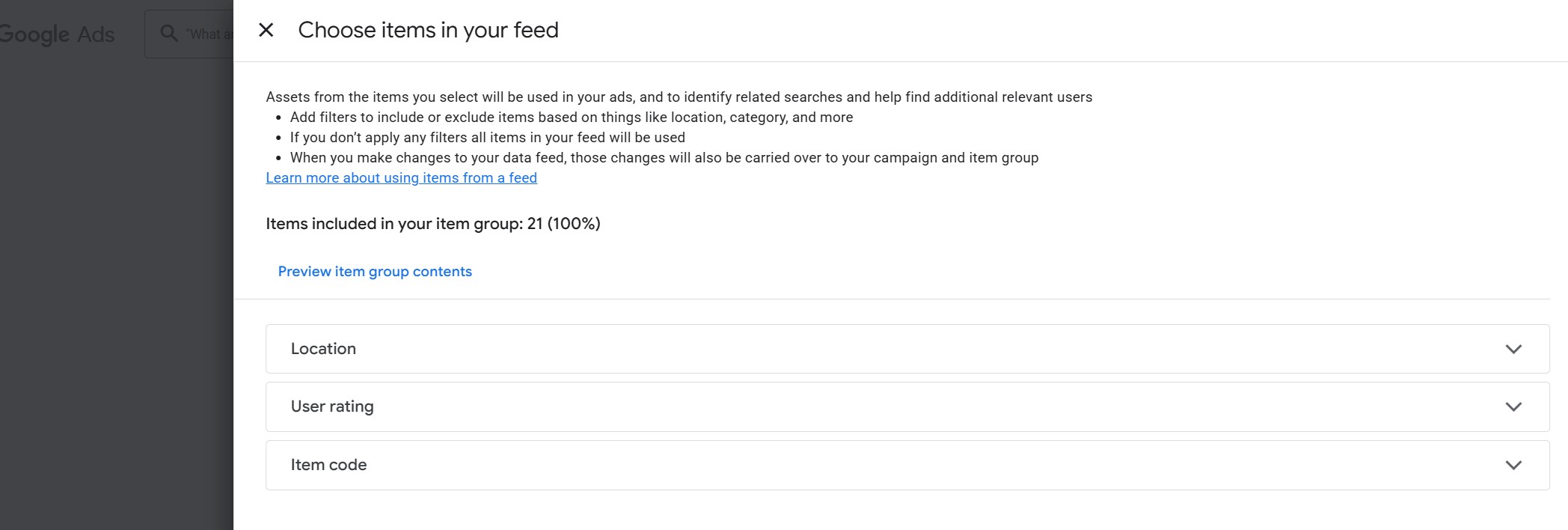
Select Add filters to open Choose items in your feed. By default all items are included (for example, 21 (100%)). Narrow the group using the available dimensions, Location, User rating, and Item code, then Include or Exclude the matching items. If you apply no filters, all items in your feed are used and later feed changes carry over automatically. Use Preview item group contents to check what's included.
Under Search term matching, keep Expanding your keywords with Google AI enabled so AI Max can broaden your reach to relevant new searches.
Finally, handle the ad itself lower on the screen:
- If you left Text ads unchecked, there's no search ad to build, your feed items run on their own budget, just as in a traditional Travel Campaign. Continue with Next.
- If you checked Text ads, the ad group needs at least one Responsive Search Ad for your feed items to appear on. Add a Final URL, Headlines (up to 15), Descriptions (up to 4), Business name, and Business logo, using the ad strength indicator and live preview as your guide, then select Next.
Set your budget
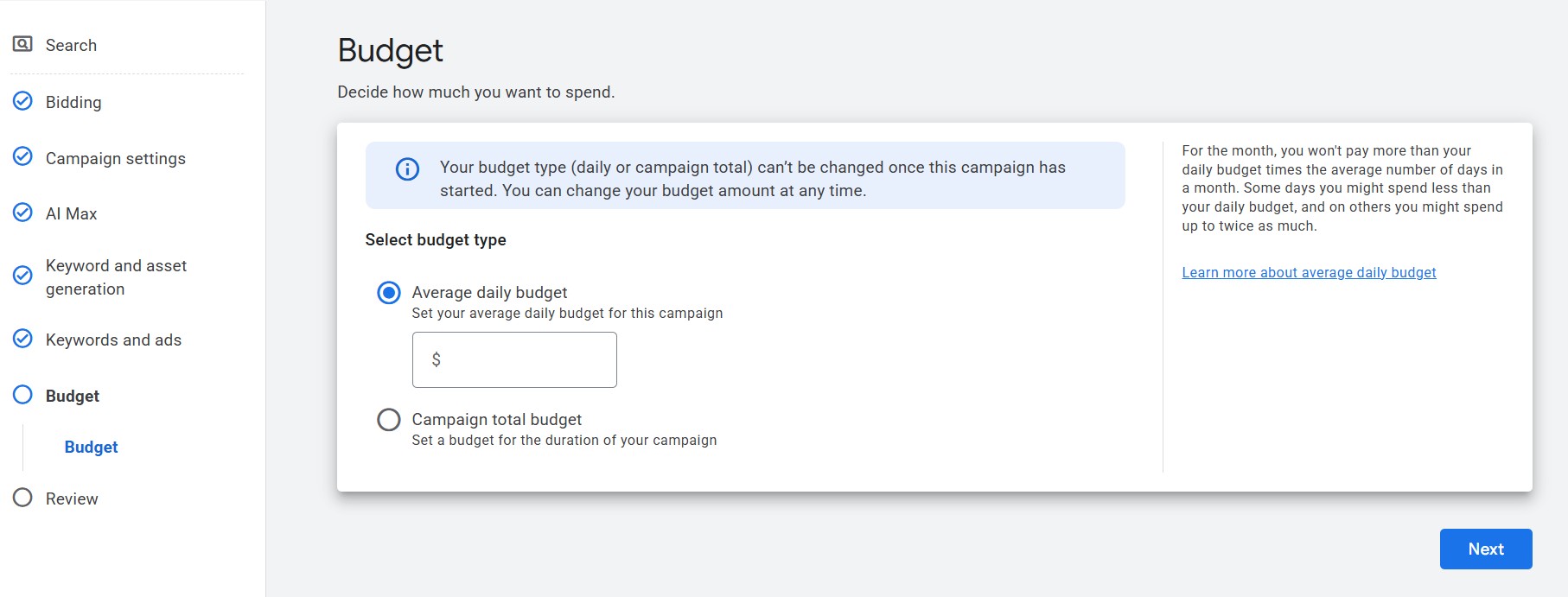
On the Budget screen, choose a budget type, Average daily budget (most common) or Campaign total budget, and enter the amount. Your budget type can't be changed once the campaign starts, but you can change the amount any time. Select Next.
Review and publish
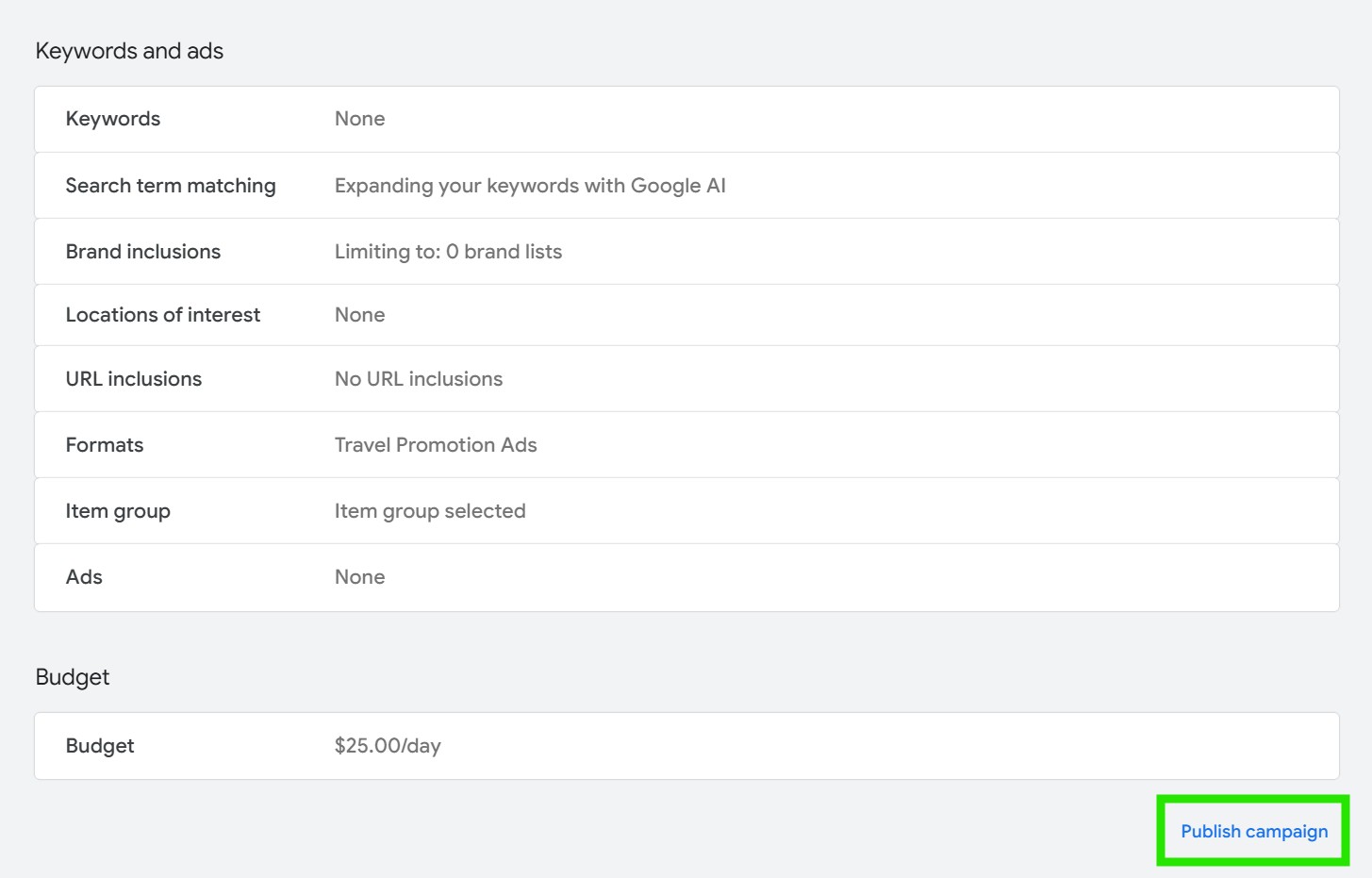
On the Review screen, check the summary of your ad group, formats, item group, search term matching, and budget. When everything looks right, select Publish campaign.
What changed in the migration
Google moved every active legacy Travel Campaign to a Search Campaign for Travel automatically. Google works to respect your original intent, so your budget, bidding, and targeting were carried over to the closest equivalent, and all historical data from your old campaigns stays available in Google Ads for review.
After migration, your activities run in Travel Promotion Ads (TPA) format by default, the same feed-only behavior you had before. To do more, open the campaign and:
- Add a text ad by enabling Text ads in your ad group formats (Step 10), then building a Responsive Search Ad your feed items also appear on.
- Turn on the other optimization tools these campaigns unlock, including AI Max search-term matching, item groups for feed-based targeting, and the new format and item-level reporting.
Already running a campaign? You don't have to rebuild it. Open the campaign's Campaign settings, switch on AI Max, and add your feed items there, so an existing Search campaign gets the same feed-based formats and optimizations.
New reporting features
The new setup also unlocks more ways to see how your feed and formats perform. The previews below are Google's illustrative mocks, so your live interface may look a little different.
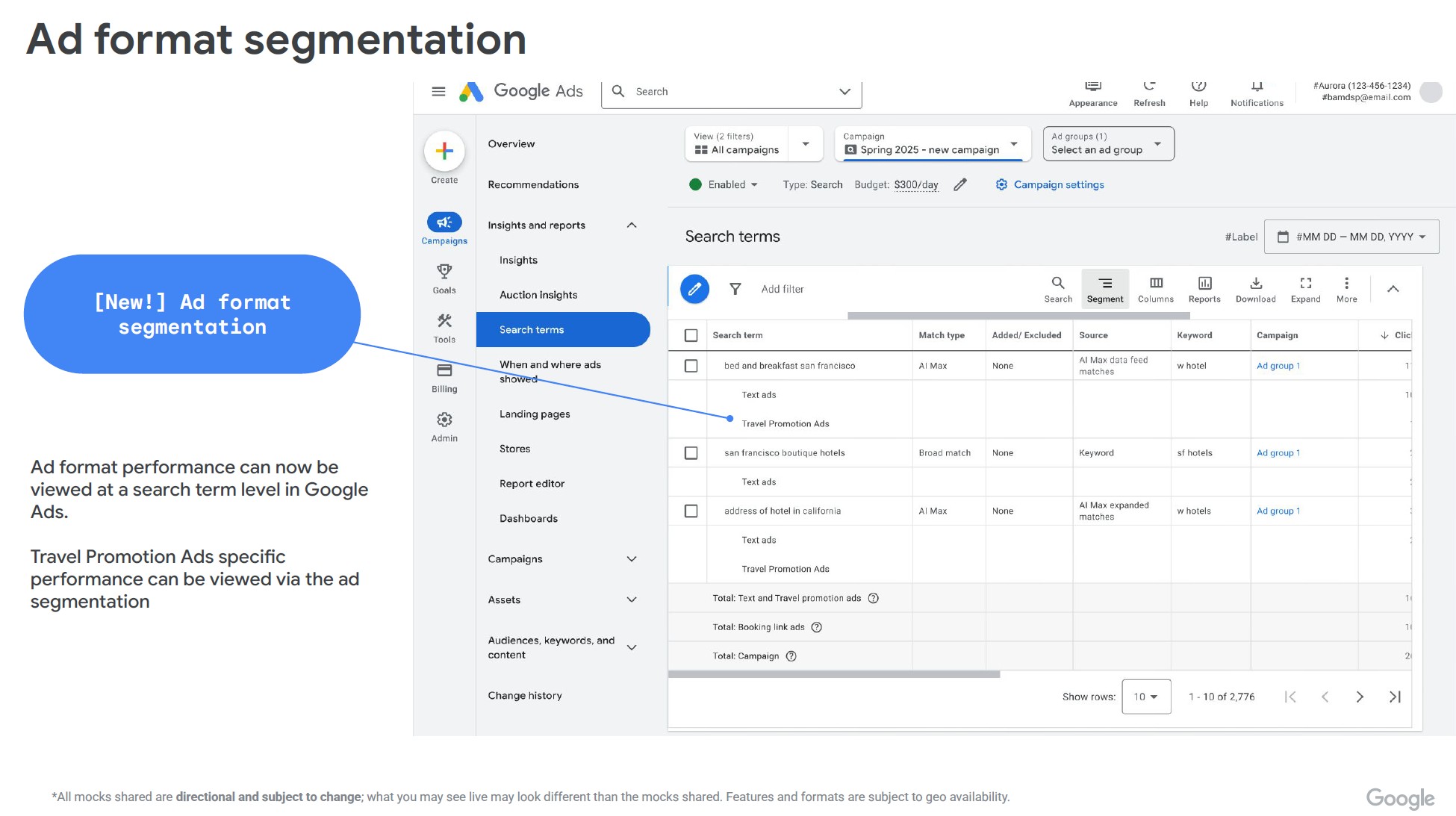
Ad-format segmentation in Search terms
In Insights and reports → Search terms, use Segment to break performance down by ad format. Each search term expands into Text ads and Travel Promotion Ads rows, so you can see which format earned the click, with totals for text and travel promotion ads, booking link ads, and the whole campaign.
Search-term source reporting
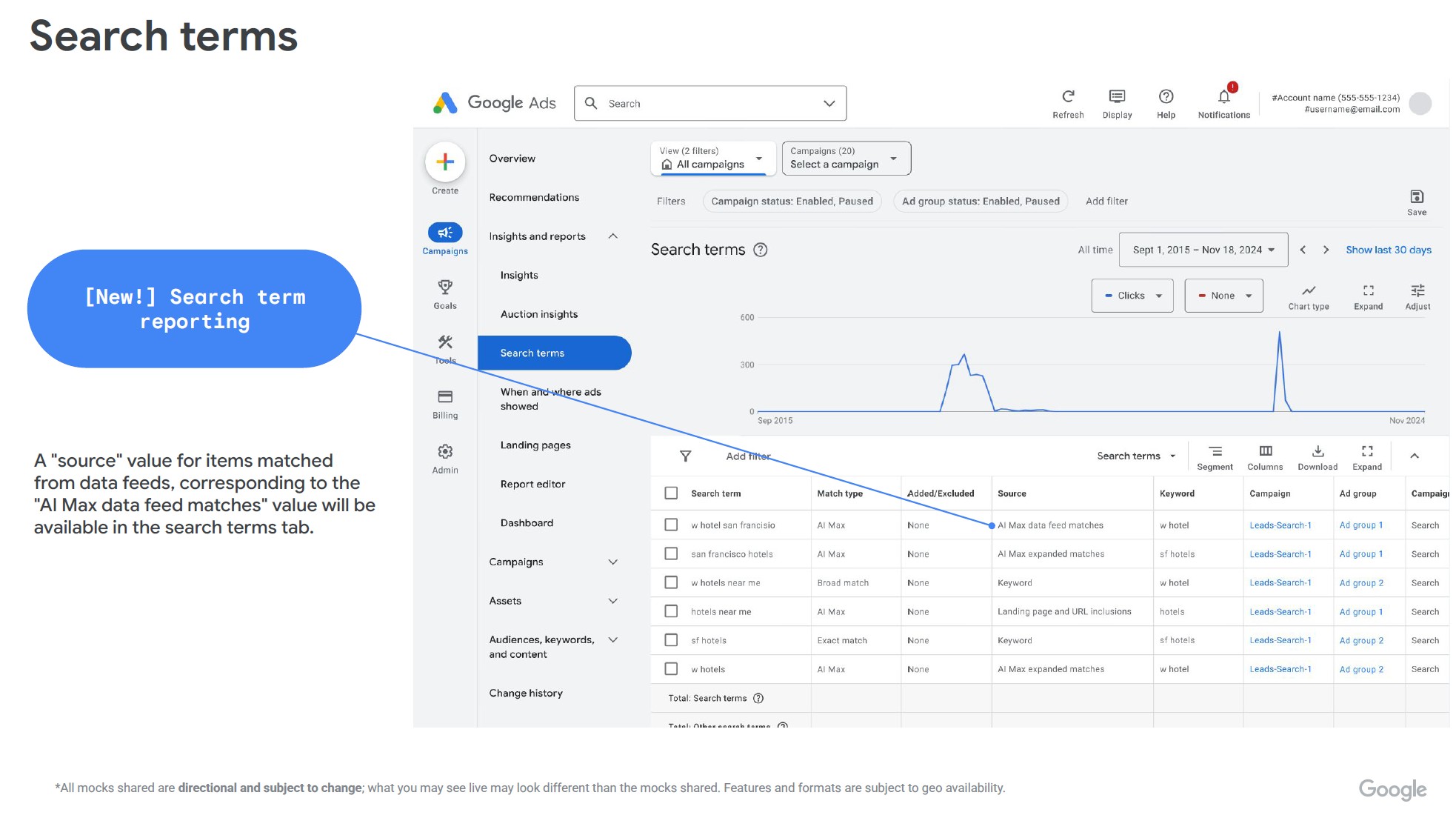
The Search terms tab now includes a Source value that shows how each term was matched. Feed-driven matches appear as AI Max data feed matches (alongside values like AI Max expanded matches, Keyword, and Landing page and URL inclusions), so you can tell feed-based reach apart from keyword matches.
Item (vertical) performance report
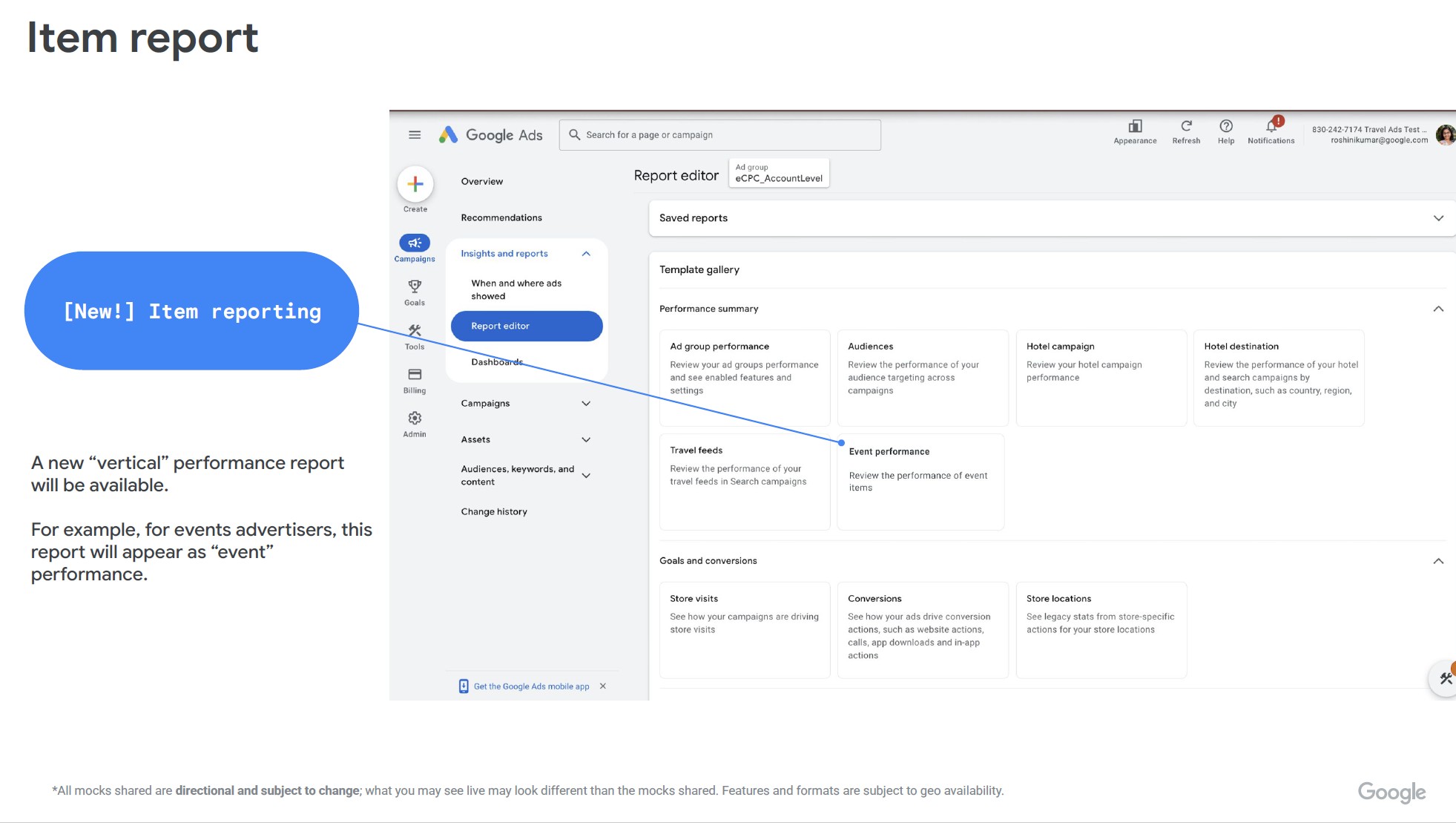
A new item, or "vertical", performance report is available in Insights and reports → Report editor → Template gallery, listed as Travel feeds ("Review the performance of your travel feeds in Search campaigns"). For events advertisers it appears as Event performance.
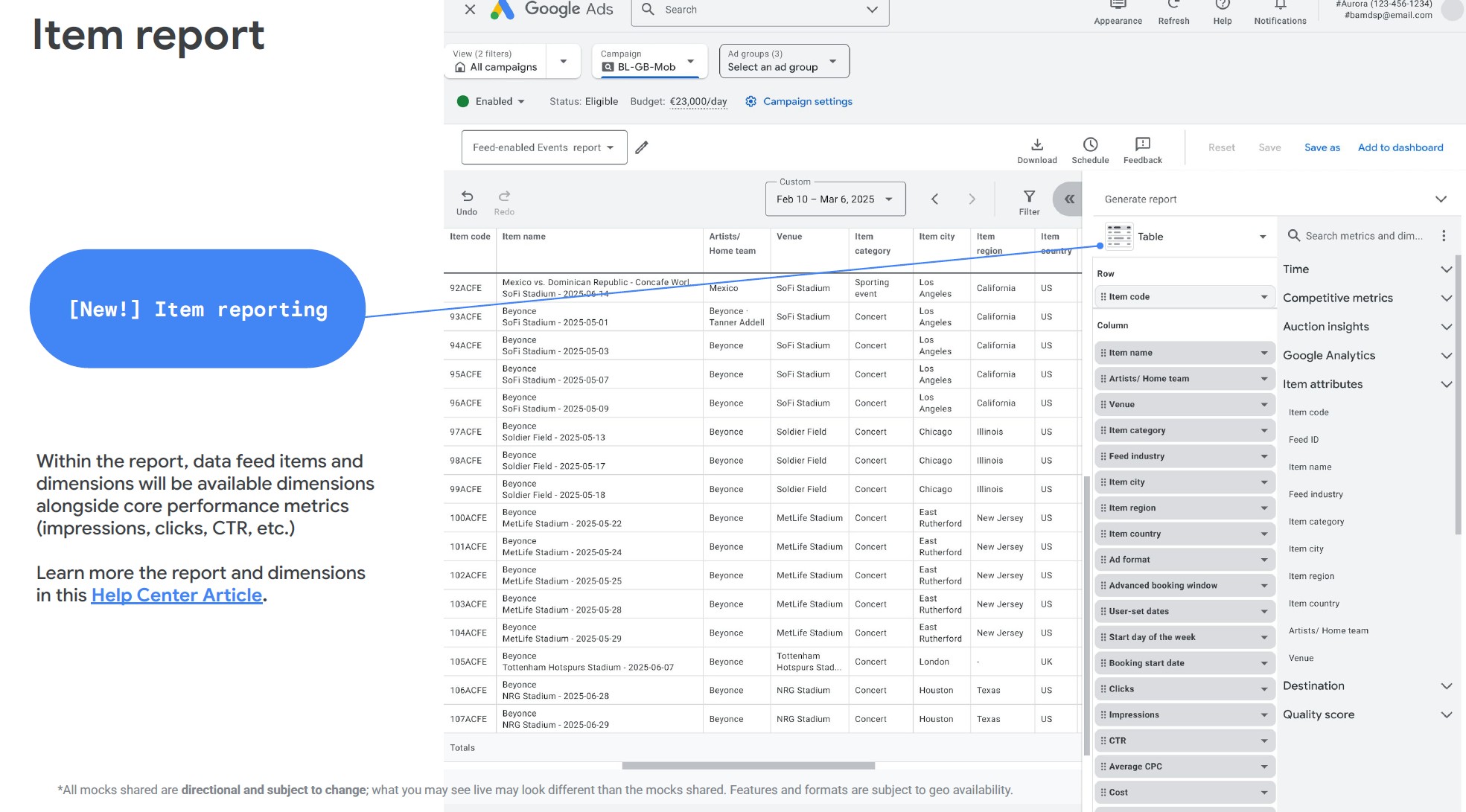
Inside the report, your data-feed items and dimensions, item code, item name, category, city, region, country, ad format, and more, are available alongside core metrics like impressions, clicks, CTR, average CPC, and cost, so you can analyze performance item by item.
Benefits
- Show your activity feed's price and availability information directly in Search ad formats.
- Reuse the same Things to Do feed data you already send to Google through Magpie, with no new feed to build.
- Advertisers running the full range of travel formats see up to a 20% increase in click-through rate (Source: Google internal data, Global, May 2024).
Magpie is a feed provider, not a marketing agency. We keep your Things to Do feed in sync and connected to Google, but we can't advise on budget, bidding, or targeting strategy for your campaigns. For hands-on campaign strategy and management, work with one of our marketing partners.
Google's recommended best practices
The guidance below reflects Google's current beta recommendations, not Magpie's advice on how to run your ads.
Choosing your account structure
Google offers two ways to organize formats, both compatible with the beta:
- Retain your current structure. Keep dedicated campaigns for Text Ads versus Travel Formats, each with its own budget. Add broad item groups so feed formats get good reach, and refine later.
- Merge formats (Google's recommended, more-automated option). Run all formats under a single campaign and budget, with separate ad groups per format (for example, one Text Ads ad group and one Travel Promotion Ads ad group). Text Ads include Travel Feeds in Search Ads (feed required); Travel Formats include TPA and Booking Links. Replicate your existing item groupings, or start with your whole feed in one item group and refine.
Autobidding is required during the beta for both structures. Merging formats lets AI Max shift budget toward the best-performing formats automatically.
Bidding and targeting
- Use conversion-based autobidding (Maximize Conversions or Maximize Conversion Value). Manual CPC is expected to remain available until general availability in H2 2026.
- Budgets live at the campaign level and apply to every format in the ad groups within it.
- Keywords are for optimization, not restriction: an exact-match keyword alongside item targeting won't reduce your feed-based traffic, but its bid takes priority in the auction.
Measurement
- Opt into Data-Driven Attribution (DDA), now available for Travel formats, under Tools & Settings → Measurement → Attribution, to credit conversions across formats and campaigns.
- If you use a manager (MCC) account, verify cross-account conversion tracking with Account map (under Tools & Settings → Setup). An orange check mark next to an account means it shares conversions with the manager; without it, that account's data won't appear in cross-network paths or attribution.
- New reporting is available for ad-format segmentation, search-term source values, and item-level performance, see New reporting features above.
Track ad vs organic clicks (optional)
You can tell ad clicks apart from organic in your landing-page reporting. Add the {GOOGLE-ADS-CLICK-SOURCE} variable to your URL template (configured in Actions Center), for example https://www.yourdomain.com?{GOOGLE-ADS-CLICK-SOURCE}. At serving time Google replaces it with a value that identifies the ad format or campaign type the click came from:
| Ad format clicked | Value |
|---|---|
| Paid Booking Links (BL) | bl |
| Travel Promotion Ads (TPA) | tpa |
| Travel Feeds in Search Ads (TFSA) | tfsa |
| Travel Ads from Performance Max / PM for Travel Goals (PM) | pm |
| Free Booking Links (FBL) | (blank) |
GOOGLE-ADS-CLICK-SOURCE is available for Things to Do (as well as Hotels and Vacation Rentals). Google's related conditional variables (IF-HOTEL-CAMPAIGN, IF-AD-CLICK, IF-PROMOTED) are only available for Hotels and Vacation Rentals, not Things to Do, so use the source value above for your Things to Do reporting. This is recommended but not required.
Frequently asked questions
Which bidding strategy should I use with AI Max?
Use a conversion-based strategy such as Maximize Conversions or Maximize Conversion Value. AI Max relies on the signals from automated bidding to power Search Term Matching and its other optimizations. If you use Manual CPC, those AI features, including smart search-term matching, won't work, so AI Max's benefits are limited.
Can I edit the activity titles or images used in my ads?
No. Creative content for feed-based formats like Travel Promotion Ads is managed in your feed, not at the campaign level. Update your activity titles and images in Magpie (your Things to Do Center feed), and Search Campaigns for Travel will use that feed data to generate ads dynamically.
If I add a new activity to my feed, do my Item Groups update automatically?
Yes. Item Group rules automatically match new items as your feed updates. For example, if an Item Group is filtered for Country includes France, any new activity added to your feed in France is included automatically.
Is keyword targeting available for travel formats?
Yes. Keyword targeting works with Text ads (including those enhanced by Travel Feeds in Search Ads) and Travel Promotion Ads in your Search Campaigns for Travel ad groups, more flexibility than legacy travel formats offered. It complements feed-based Item Group targeting rather than replacing it.
Does AI Max honor negative keywords?
Yes. Negative keywords are respected even with AI Max turned on.
Will AI Max reuse my existing ad copy?
It can. The generated ad may include your existing ad copy when it's relevant to the traveler's query and the ad URL, alongside marketing messages drawn from your landing pages.
What happens if I turn AI Max off?
AI Max is a suite of features. Turning it off disables all of them, including settings like brand exclusions, and may impact performance. Turning it back on restores those settings as they were.
Does AI Max work with Google Ads Editor or the API?
Not fully yet. Activating or deactivating AI Max can cause errors for API requests that manage text customization and brand settings, since AI Max isn't yet available in the API and Editor. Let your team know before toggling it, and check Google's documentation for the latest availability.
Support
If you need help connecting or syncing your Things to Do feed for Search Campaigns for Travel, contact the Magpie team and we'll get your feed sorted. For budget, bidding, or targeting strategy, see our marketing partners.